Team Management
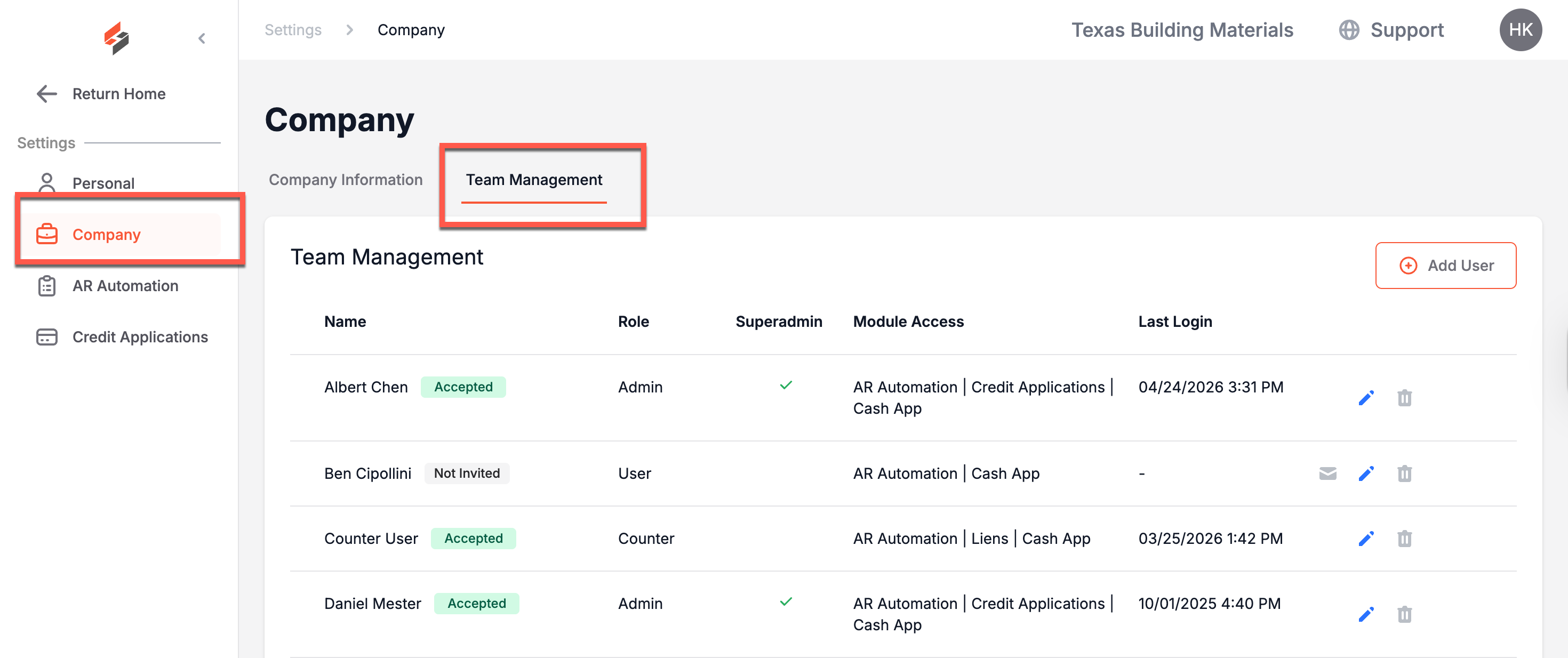
The Team Management tab allows super admin users to add, edit, or remove internal team members. When opening this page, you will see a table of all team members added to Suppli.
Adding Team Members
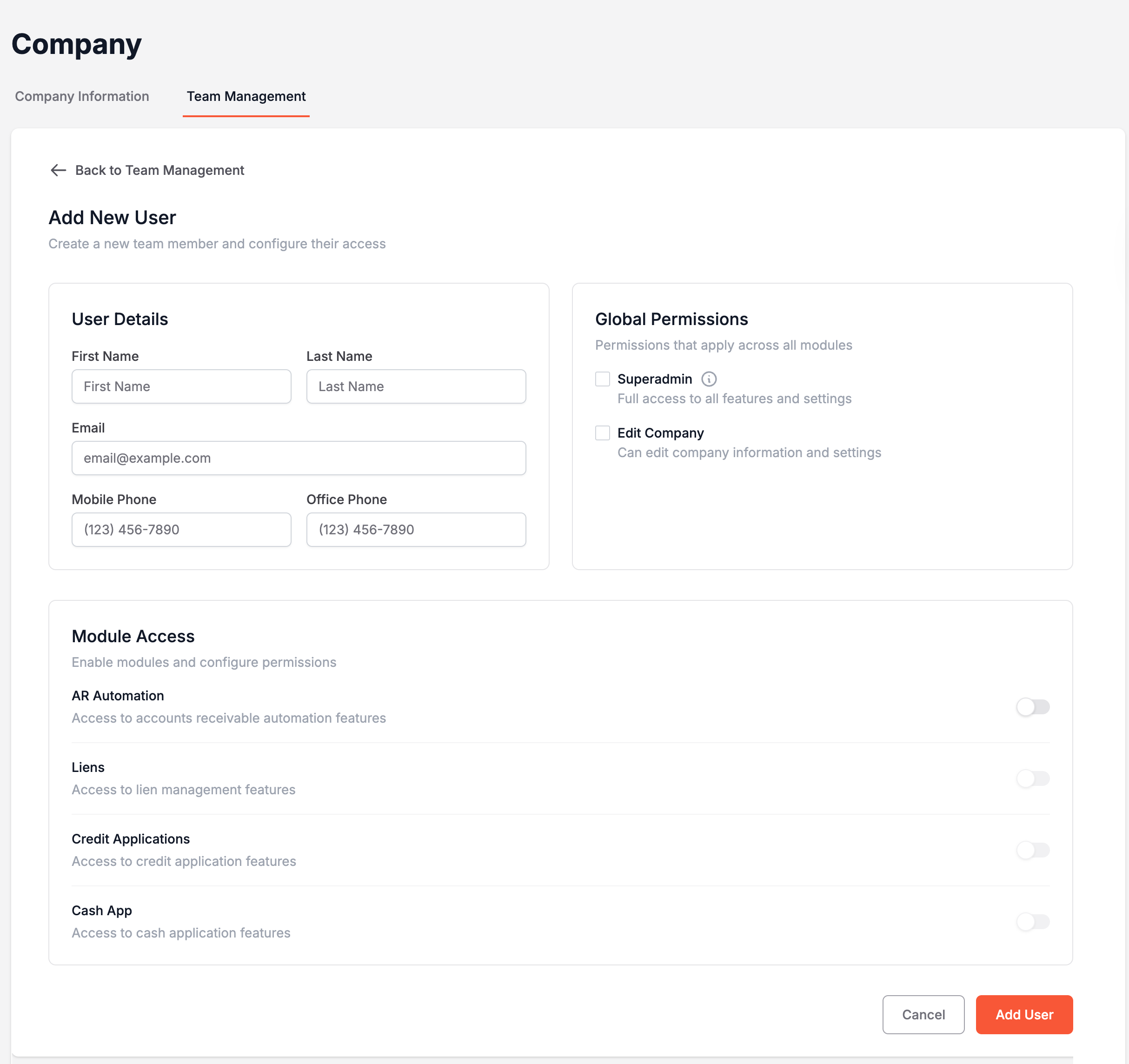
With Suppli, you can add an unlimited number of team members. To do this, a super-admin simply needs to click "Add User" on the left-hand side of the page. This will open the following page to set up the new user. Please note that the email address entered above will be the team member's username.
Enabling Module Access & Permissions
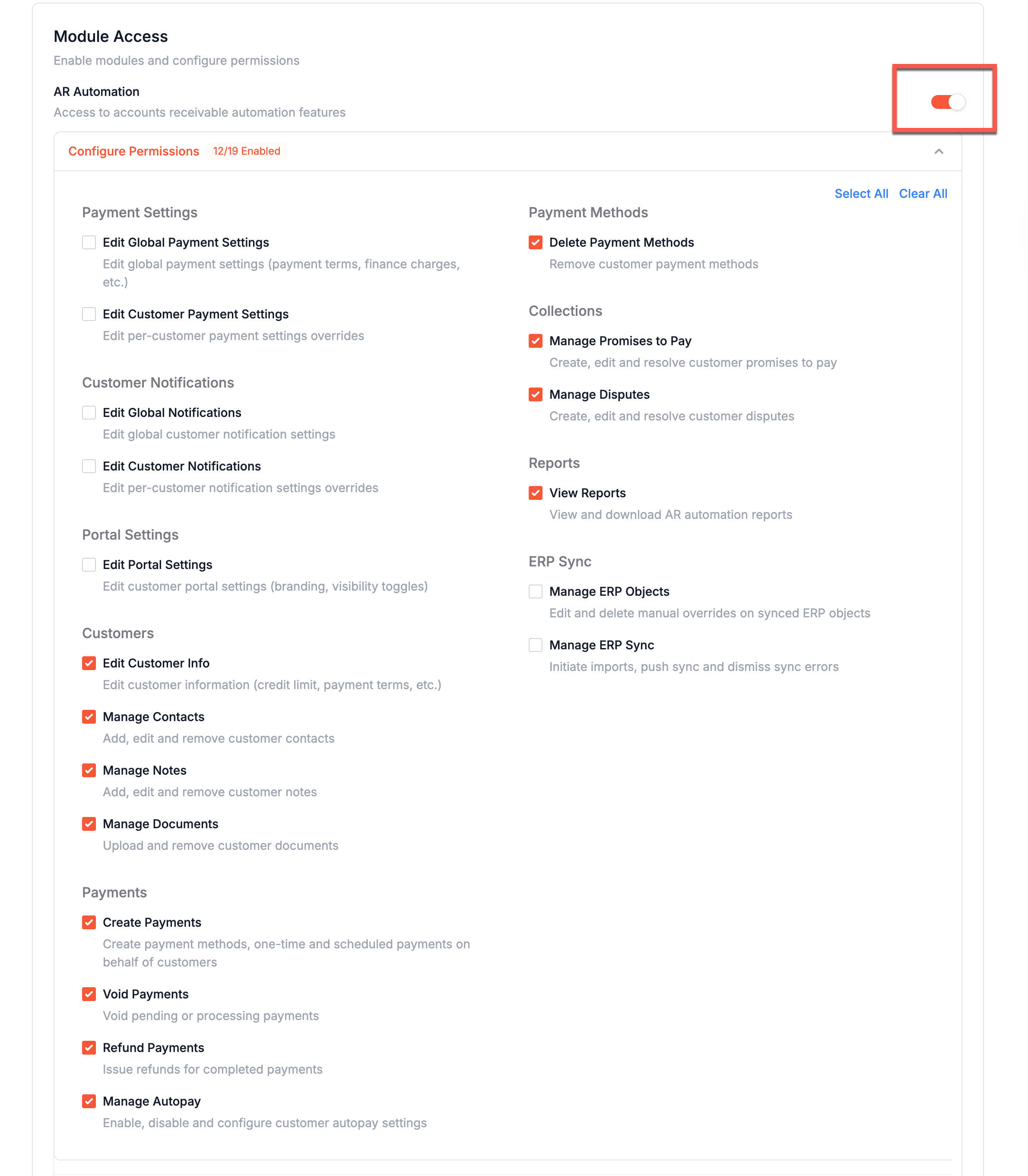
To give a user access to Suppli, you must enable access to at least one module. To grant access to a module, toggle the switch on.
Once a module is enabled, the permissions associated with that module become available. From here, you can grant or revoke specific permissions related to that individual user's responsibilities in Suppli.
Global Permissions
There are two global permissions - Superadmin and Edit Company. Superadmins are the only users in Suppli with all permissions enabled by default, and they are the only users who can add new users to Suppli. If Edit Company is enabled, users can update the Company Information tab in settings.
Inviting Team Members
Once a team member has been added and permissions granted, you can invite them to join Suppli. To do this, simply click the envelope icon (a "Send Invite" message will appear as you hover over it).
After an invitation has been sent, you can resend it by clicking the refresh icon (a "Resend Invitation" message will appear when you hover over the icon). You can only resend an invitation if they haven't accepted the invitation.

Editing/Removing Team Members
Team members' contact information can be edited until the user has created their profile. To do this, simply click the blue pencil icon (an "Edit User" message will appear when you hover over it). After they have created their profile, you can only edit their permissions, not their contact information.

If you would like to remove a team member from Suppli, click the trashcan icon (a "Remove User" message will appear when you hover over it).