Customers - Section Overview
The Customers Section is a digital file cabinet for all things related to your customers. Access this section when performing actions or looking up information for a specific customer.
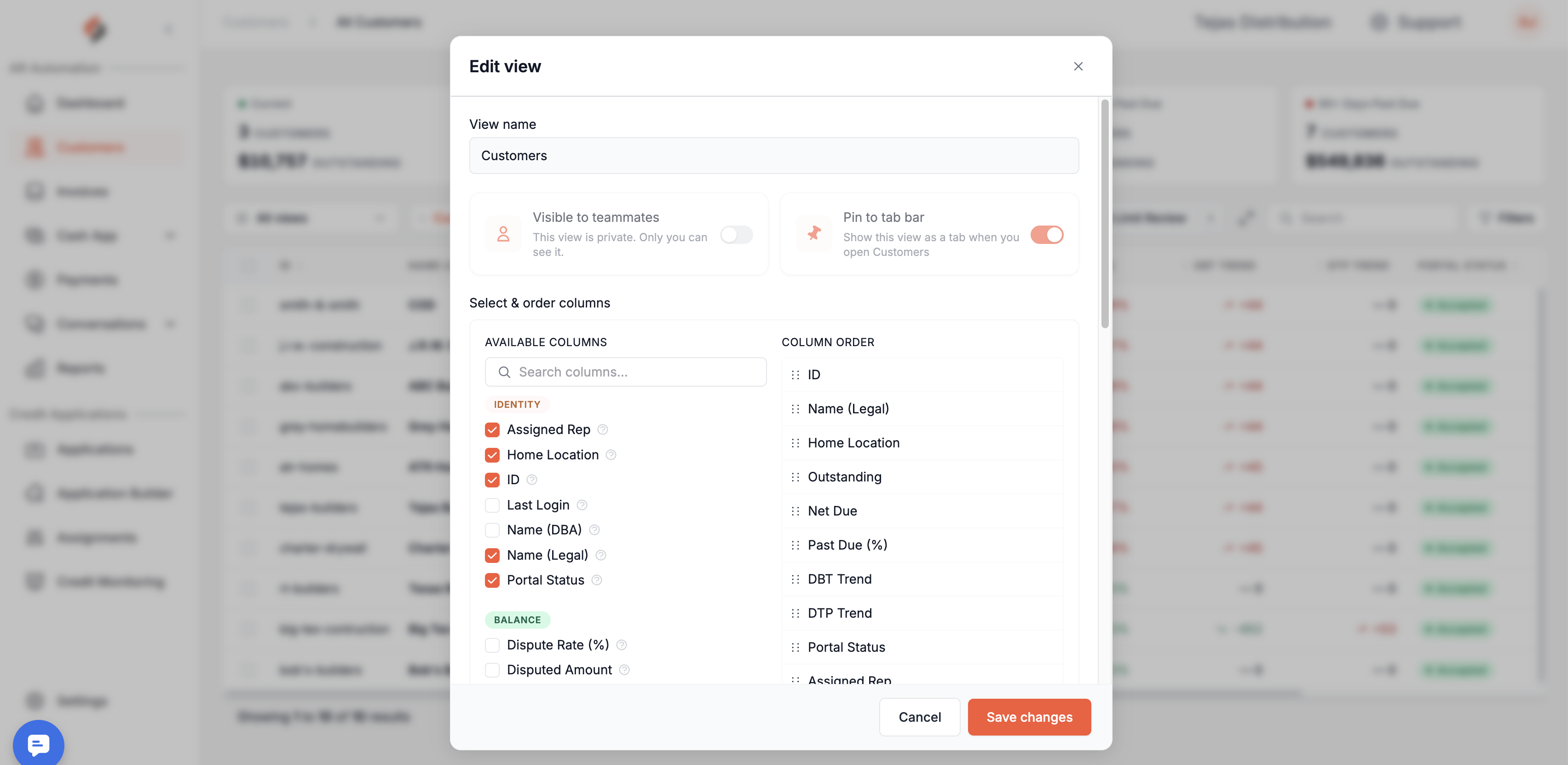
You'll see the Customer Index when you first access the Customer section. This index lets you view and organize your AR across all customers. Columns are grouped into four categories — use the column picker to show or hide the ones most relevant to your workflow.
You'll see the Customer Index when you first access the Customer section. This index is built on Suppli's new customizable tables, which let you choose which columns to display, reorder them, and save your view, learn more about customizable tables here. Columns are grouped into four categories — use the column picker to show or hide the ones most relevant to your workflow.
Identity
Column | Description |
Name (Legal) | The customer's legal business name. Inactive customers are flagged with an "(Inactive)" label. |
Name (DBA) | The customer's "doing business as" name, if different from their legal name. |
ID | Your internal customer reference ID as synced from your ERP. |
Assigned Rep | The team member assigned to manage this customer relationship. |
Home Location | The branch or location this customer is associated with. |
Last Login | The most recent date the customer logged into the customer portal. |
Portal Status | Whether the customer has been invited to and is active on the customer portal. |
Balance
Column | Description |
Outstanding | The total open balance across all invoices, including amounts not yet due. |
Net Due | The portion of the outstanding balance that is currently due, net of any credits. |
Open Credits | The total unapplied credit memo balance available for this customer. |
Open Deposits | The total unapplied deposit balance available for this customer. |
Disputed Amount | The dollar amount of invoices currently under dispute. |
Dispute Rate (%) | The customer's lifetime dispute rate as a percentage of total invoiced amount. |
Credit
Column | Description |
Credit Limit | The credit limit set for this customer. Hidden if credit limits are not enabled for your account. |
Credit Utilization (%) | The percentage of the customer's credit limit currently in use, based on net due vs. credit limit. Color-coded by risk bucket. |
Weighting (%) | This customer's net due as a percentage of your total net due across all customers — useful for prioritizing collection effort. |
Past Due (%) | The percentage of the customer's outstanding balance that is past due. Color-coded by risk bucket. |
Aging | The customer's average days outstanding across all open invoices. |
Aging (3-mo avg) | The 3-month rolling average of the customer's aging. |
Aging Trend | Whether the customer's aging is improving, worsening, or stable compared to the prior period. |
Status | The customer's current overdue level (e.g. Current, 1–30 Days, 31–60 Days, etc.). |
Collections Reminders | Whether automated collections reminders are enabled for this customer. |
DBT | Days Beyond Terms — how many days past their agreed payment terms the customer pays on average. |
DBT (3-mo avg) | The 3-month rolling average of DBT. |
DBT Trend | Whether the customer's DBT is improving, worsening, or stable compared to the prior period. |
Payment Terms | The payment terms assigned to this customer in your ERP (e.g. Net 30). Hidden if payment terms are not enabled for your account. |
Payments
Column | Description |
Pending Payments | The total dollar amount of payments that have been submitted but not yet settled. |
Last Payment Date | The date the customer most recently made a payment. |
Last Payment Amount | The amount of the customer's most recent payment. |
Average Payment Amount | The customer's average payment amount over their history. |
On-Time Payment Rate (%) | The percentage of payments this customer has made on or before the due date. Color-coded by performance bucket. |
DTP | Days to Pay — the average number of days between invoice issue and payment for this customer. |
DTP (3-mo avg) | The 3-month rolling average of DTP. |
DTP Trend | Whether the customer's DTP is improving, worsening, or stable compared to the prior period. |
Card Fees | Whether credit card fees are enabled for this customer's payments. |
Autopay | Whether autopay is enabled for this customer. |
Next Autopay Date | The date of the customer's next scheduled autopay payment. |
Next Autopay Amount | The amount scheduled for the customer's next autopay payment. |
Plan Balance | The remaining balance on any active payment plan for this customer. |
Open P2Ps | The total dollar amount of open pay-to-pay requests for this customer. |
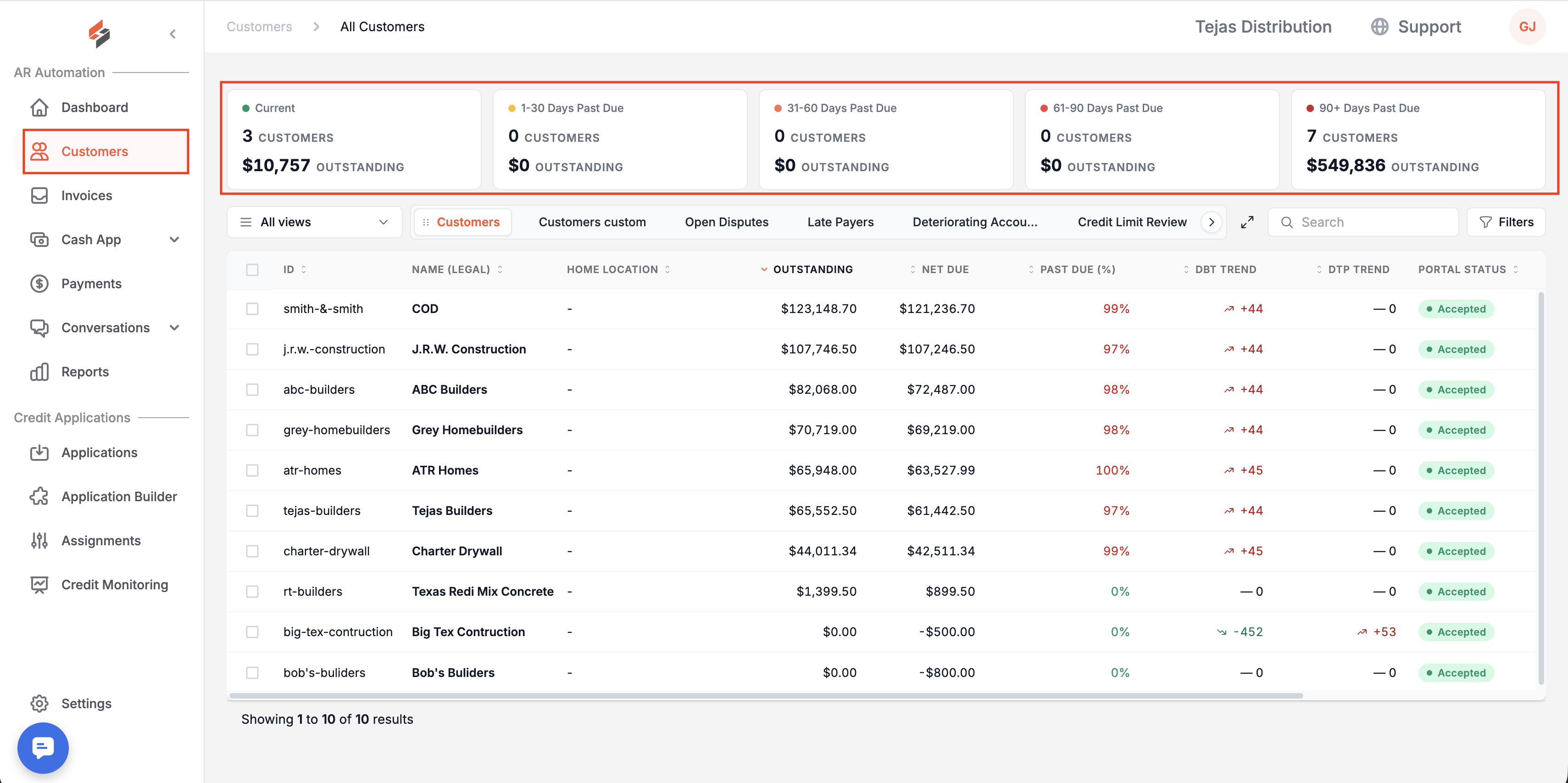
At the top of this page, you will also notice several "buckets" organized by Aging Status. These "buckets" are clickable, allowing you to filter the Customer Index by Aging Status easily.
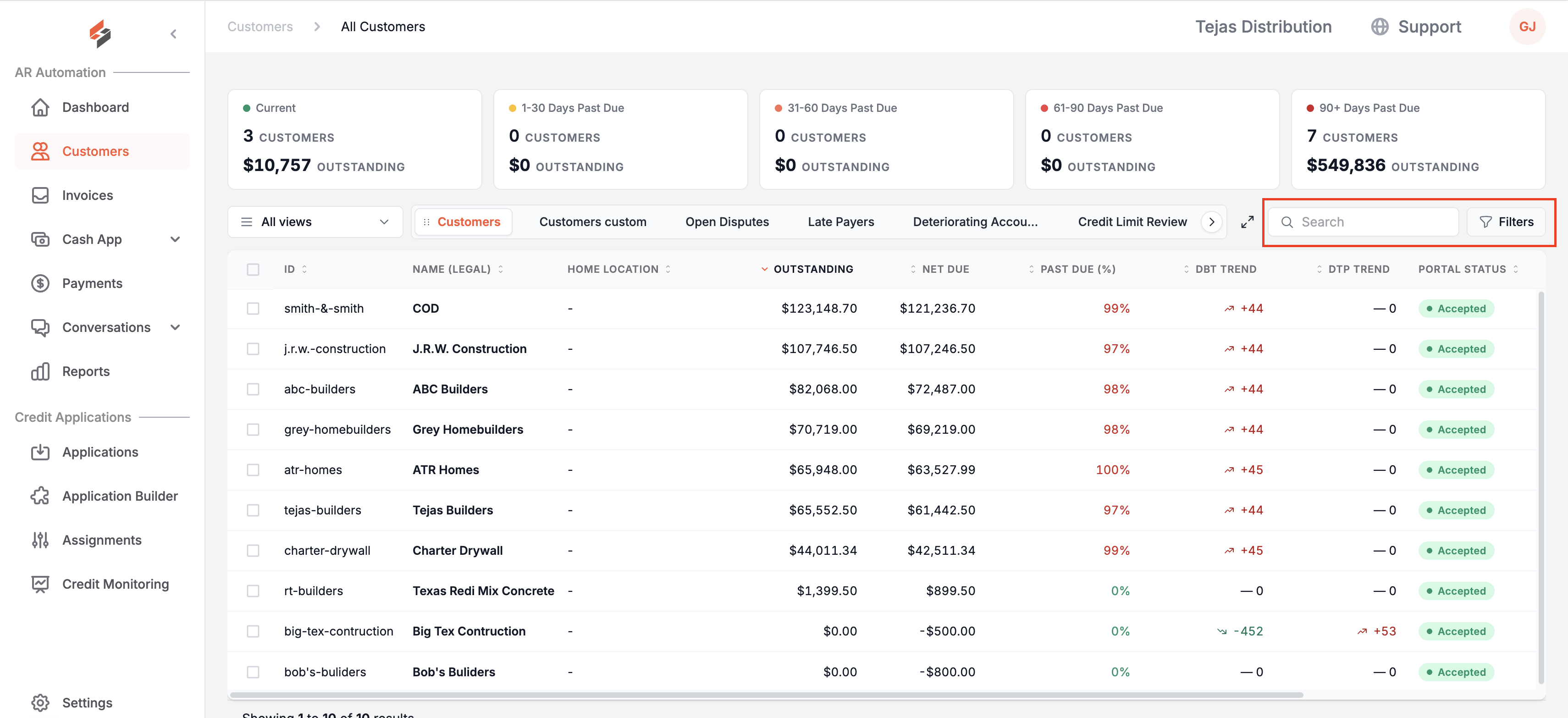
Filtering/Sorting/Search
There are various ways to navigate your way around the Customer Index.
Filtering
You can click the "Filter Button" at the top right-hand side of the screen to filter by Active/Inactive Status, Home Location, Outstanding Amount, Last Payment, Autopay status, Aging Status, Portal Acceptance, and Assigned Rep...
Sorting
Use Sorting to sort columns by alphabetical or numerical values. To do this, click on the orange arrows in each column heading.
Searching
The information within the Customer Index table is fully searchable to enable easy lookup. To perform a search, simply type in the "Search" box.
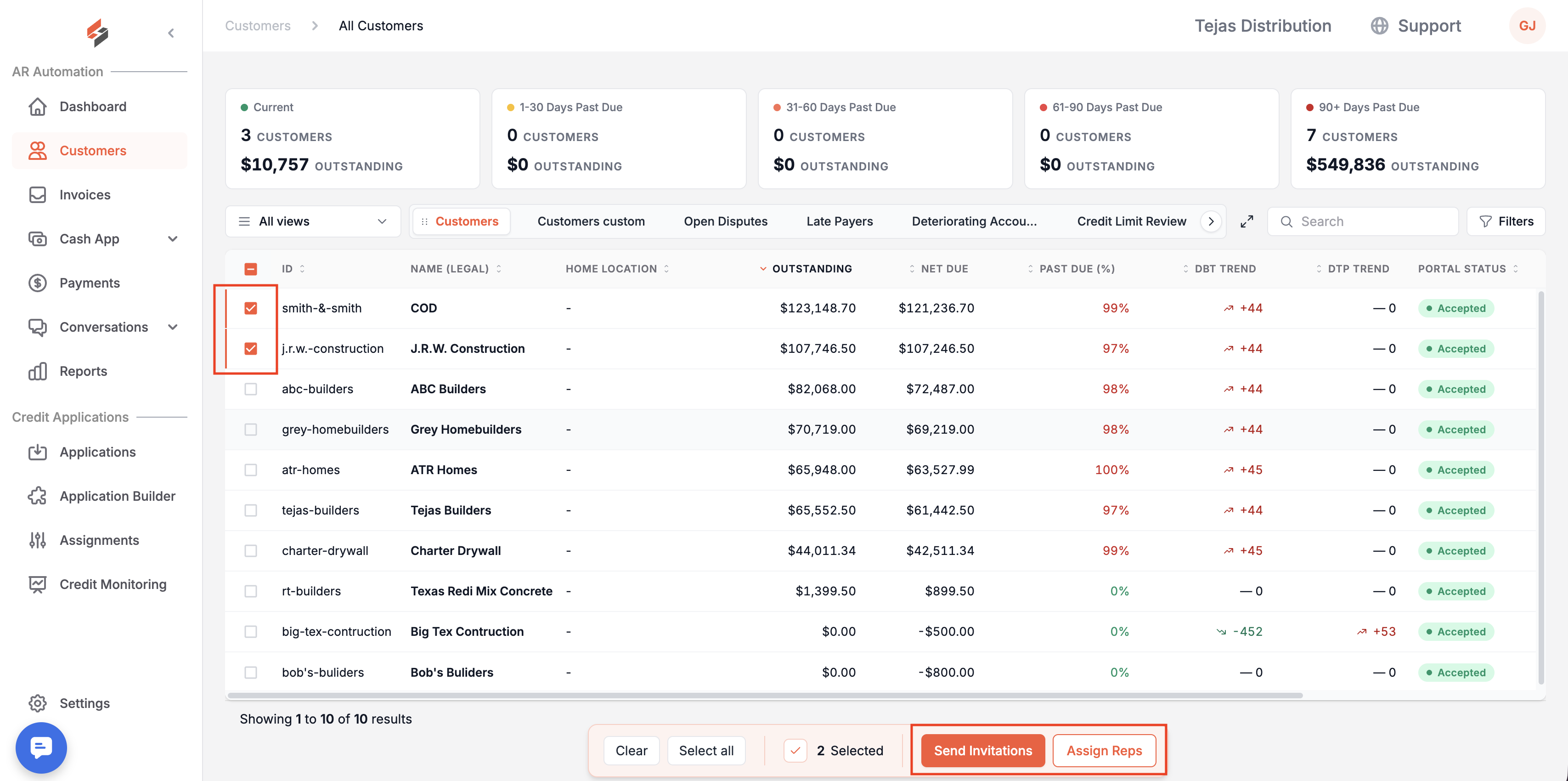
Customer Selection
To select a customer, click on a row in the table. This will take you to the Customer Overview section.
Multi-Customer Actions
You can take two types of actions on multiple customers at once: Sending Invitations and Assigning Reps. By clicking "Send Invitations," emails and/or text messages will go out to any uninvited or unaccepted customer contact associated with the selected customers. By clicking "Assign Reps," a modal will pop up, prompting you to select a Suppli user and the role that they should be associated with for the selected customers.