
Customer Projects
The Customer Projects section lets you easily manage project-level risk, invoices, and information in one central location.
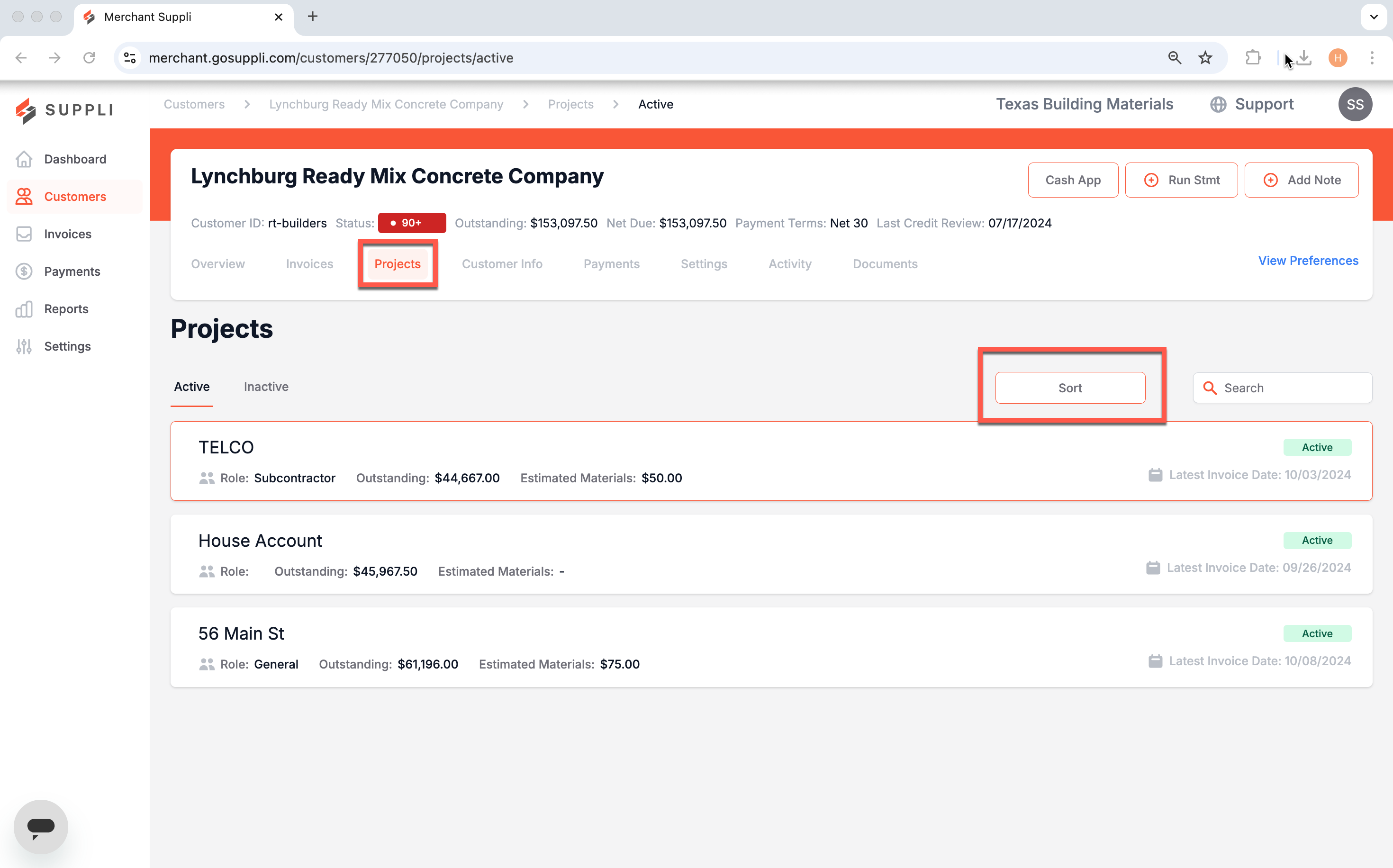
Each project is indicated by a card that contains important summary information. You can also easily toggle between Active and Inactive Projects by clicking on the sub-section headers.
How is a Project Created?
Suppli works seamlessly with your ERP/invoicing system to easily organize invoices by project.
To do this, we create a new Project ID whenever Suppli detects a new Project/PO on your Invoices. Once a new Project ID is created, all future invoices with the same Project/PO will be automatically tagged for easy organization.
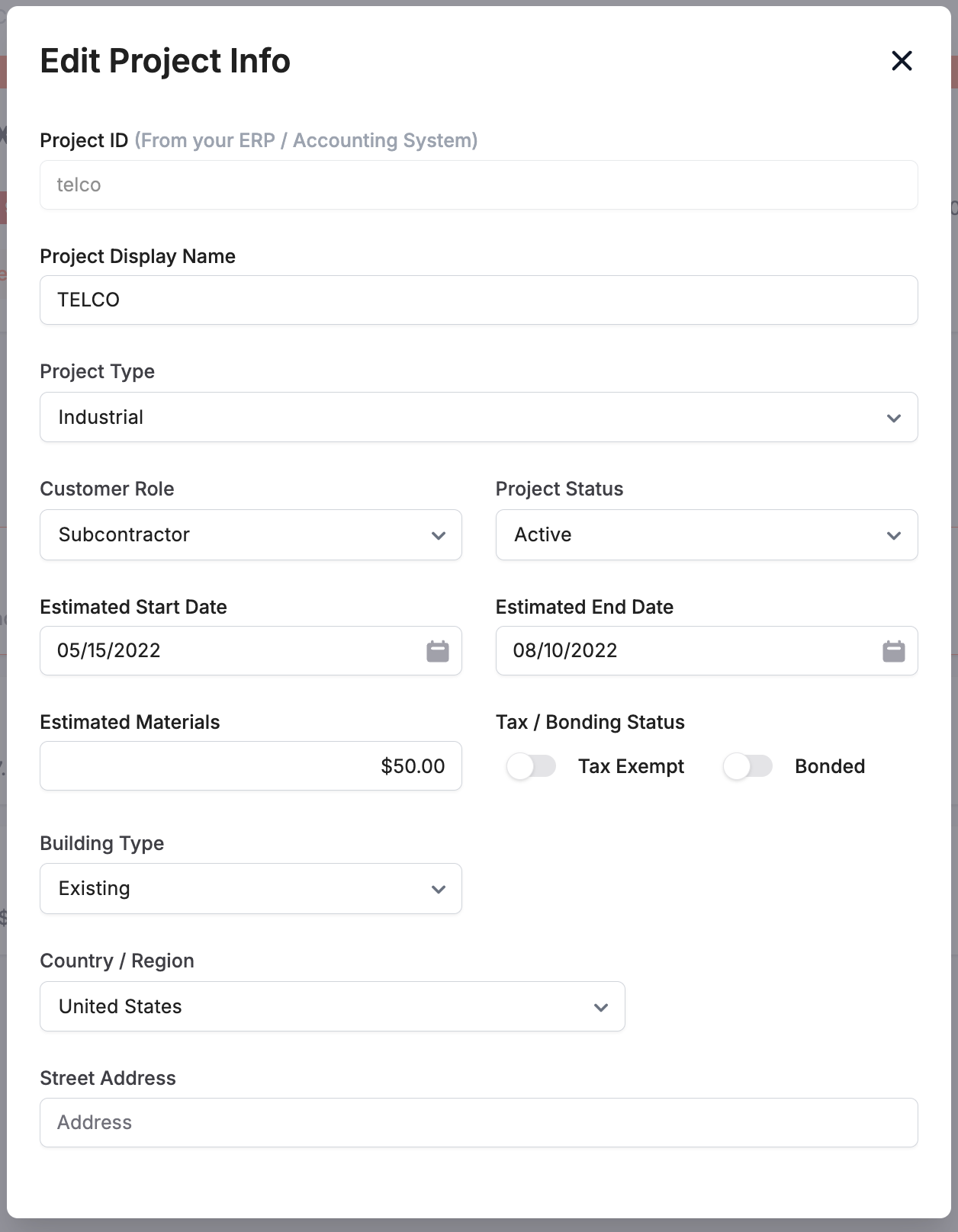
While the Project ID is not editable, Suppli allows you to change things like the Project Display Name.
Tagging Invoices to a Project
Invoices are automatically tagged to a Project based on the Project/PO information found on them. However, if you want to tag an invoice manually at any time, you can do so by clicking "Assign to Project." This can be done in the Invoices section by selecting an individual invoice.
A list of all invoices tagged to a project can be found in the sidebar by clicking:

Upon doing this, a dropdown will appear where you can select which invoices you would like to view.
Viewing Project Details
To view a project's details, click on one of the project cards. A sidebar will open.
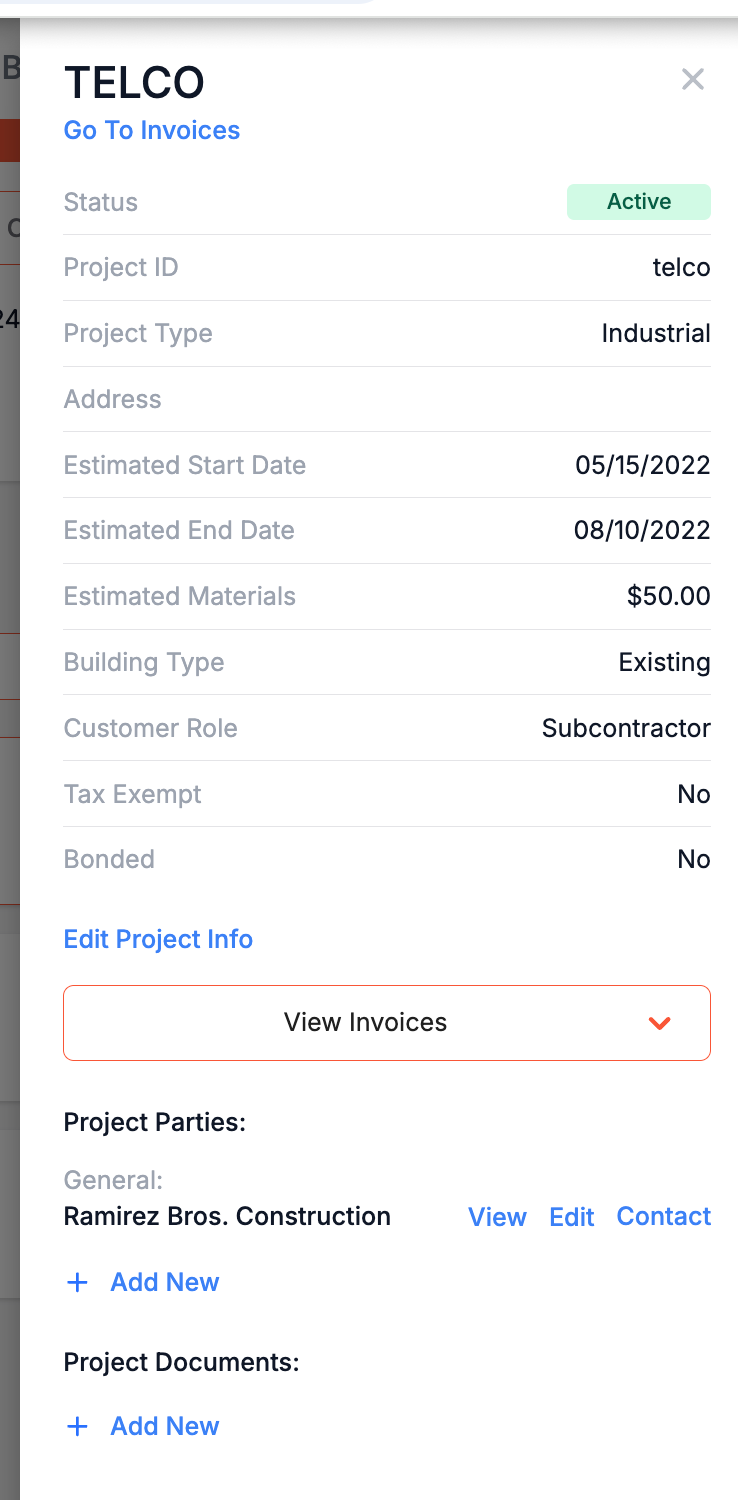
A description of each field in this sidebar can be found below:
Project Status: Defined as active or inactive
Project ID: A unique project ID (assigned by your ERP and not editable)
Project Type: Commercial, residential, industrial, or government
Address: A project's street / physical address
Estimated Start Date: The estimated start date of a project
Estimated End Date: The estimated end date of a project
Estimated Materials: The estimated dollar amount of materials to be supplied to your customer on the project
Building Type: Existing or new
Customer Role: The role of your customer on a project. Defined as general contractor, subcontractor, owner, tenant, or other
Tax Exempt: The tax-exempt status of a project
Bonding Status: The bonding status of a project
Editing Project Details
To edit a project's details, click "Edit Project Info." A modal will appear, allowing you to edit. Please note that all fields are editable except for the Project ID. You will need to scroll down the modal to click "Save" to save any edits you make.
Project Parties
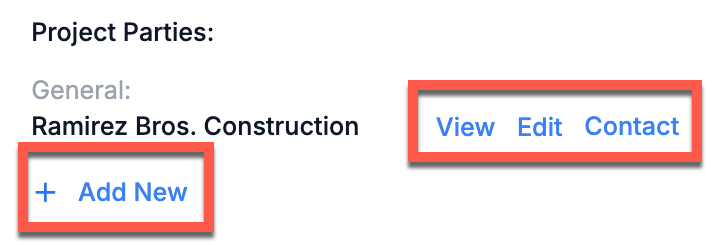
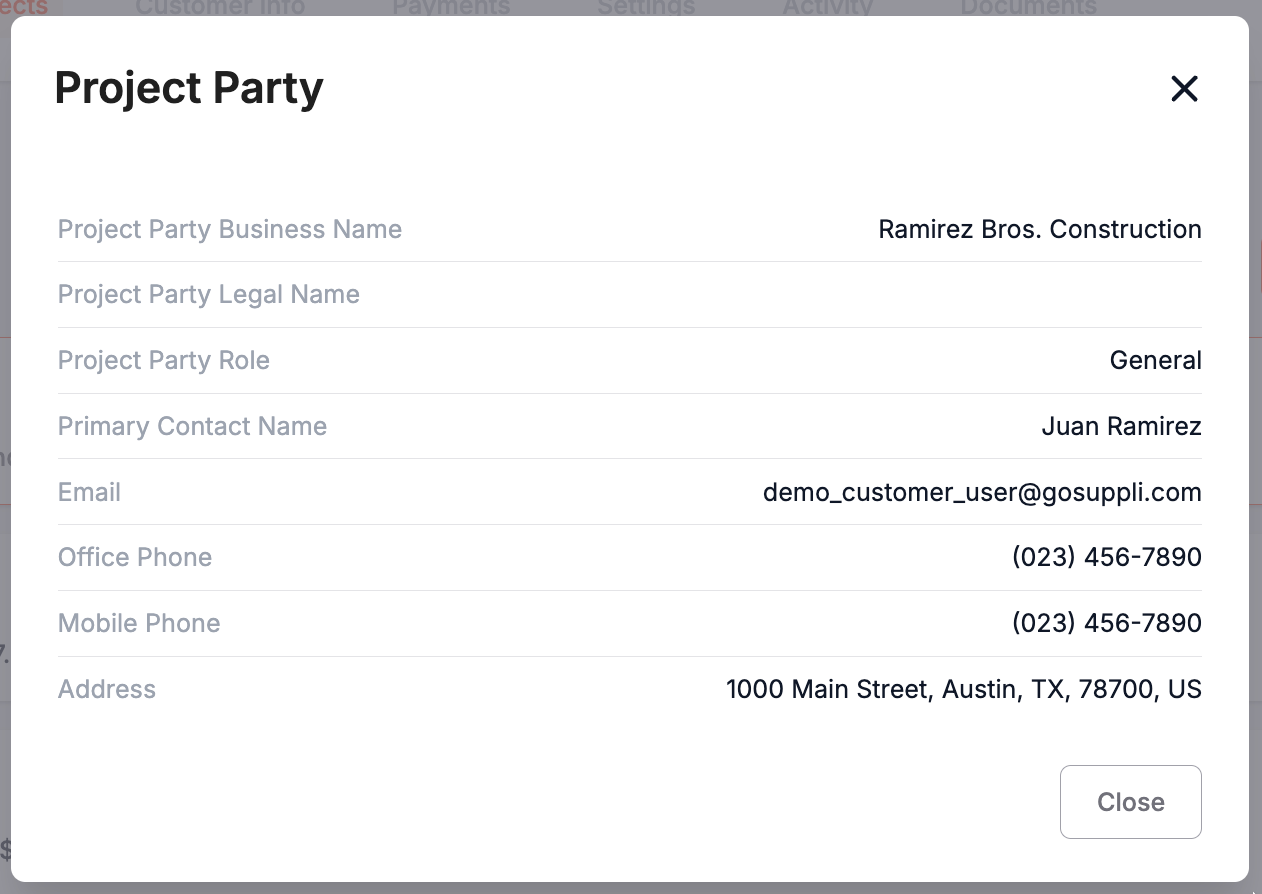
You will notice that within the sidebar, you can store the contact information of various project parties, such as owners, general contractors, and more. This information may prove helpful if you ever need to contact other parties involved in a customer's project.
For each project party, you have the option to view, edit, and contact them. You also have the ability to add new project parties.
Project Documents
For each project, you can also store project-level documents, such as tax and bond forms, project information sheets (job sheets), project contracts, and more.
To upload a project document, click the "Add New" link.