
Create an Invoice Dispute
An Invoice Dispute arises when a customer has an issue with an invoice. Invoice disputes can be created from both the Merchant Portal and Customer Portal.
Select an Invoice
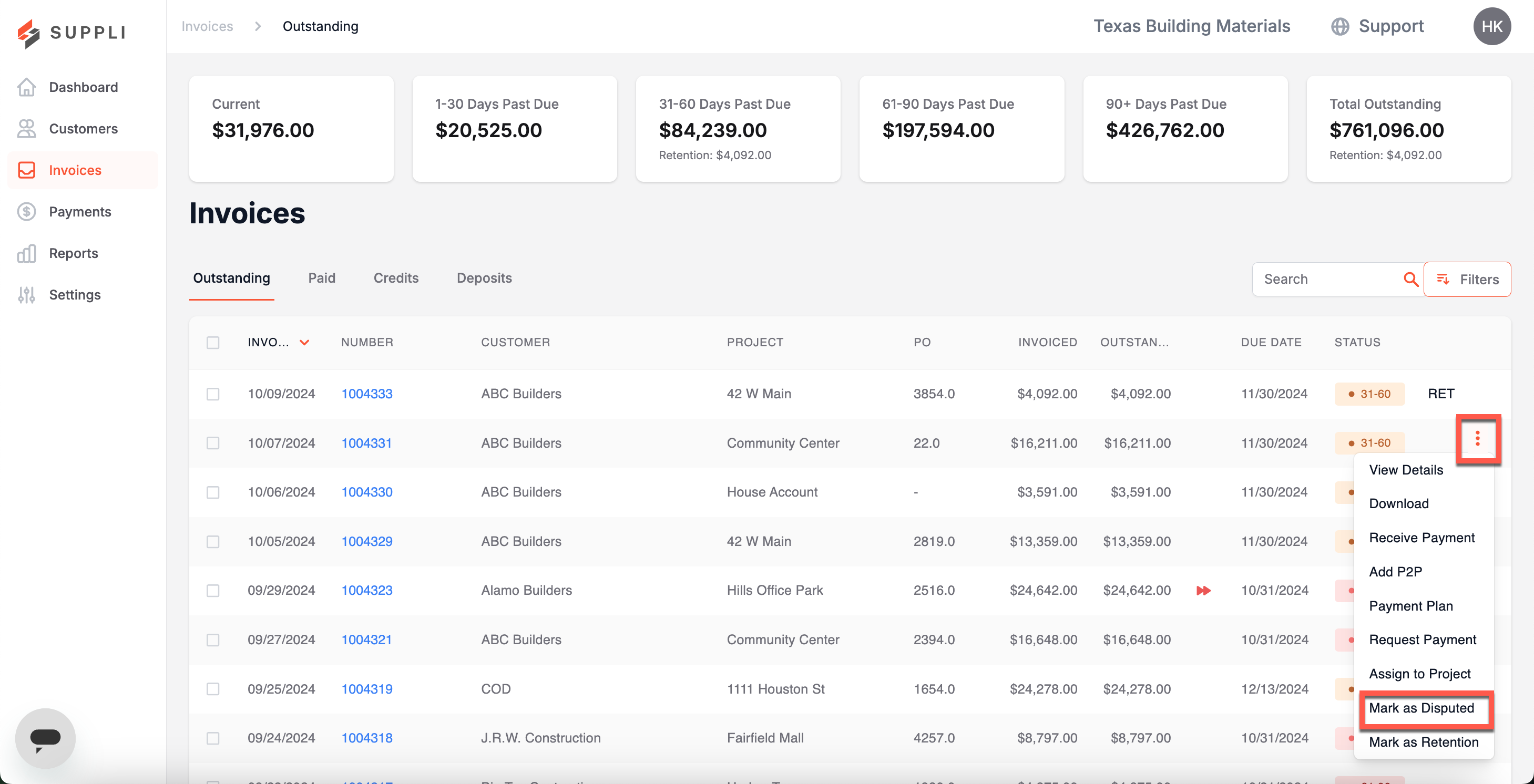
To create an Invoice Dispute, you need to first select an invoice from the Outstanding Invoices table. This can be found in either the Invoices or Customers sections.
As disputes can only be created for one invoice at a time, you must select a single invoice. To select a single invoice, click on the three orange dots on the right-hand side of the table when hovering over a row. Next, select "Mark as Disputed" from the dropdown list that appears.
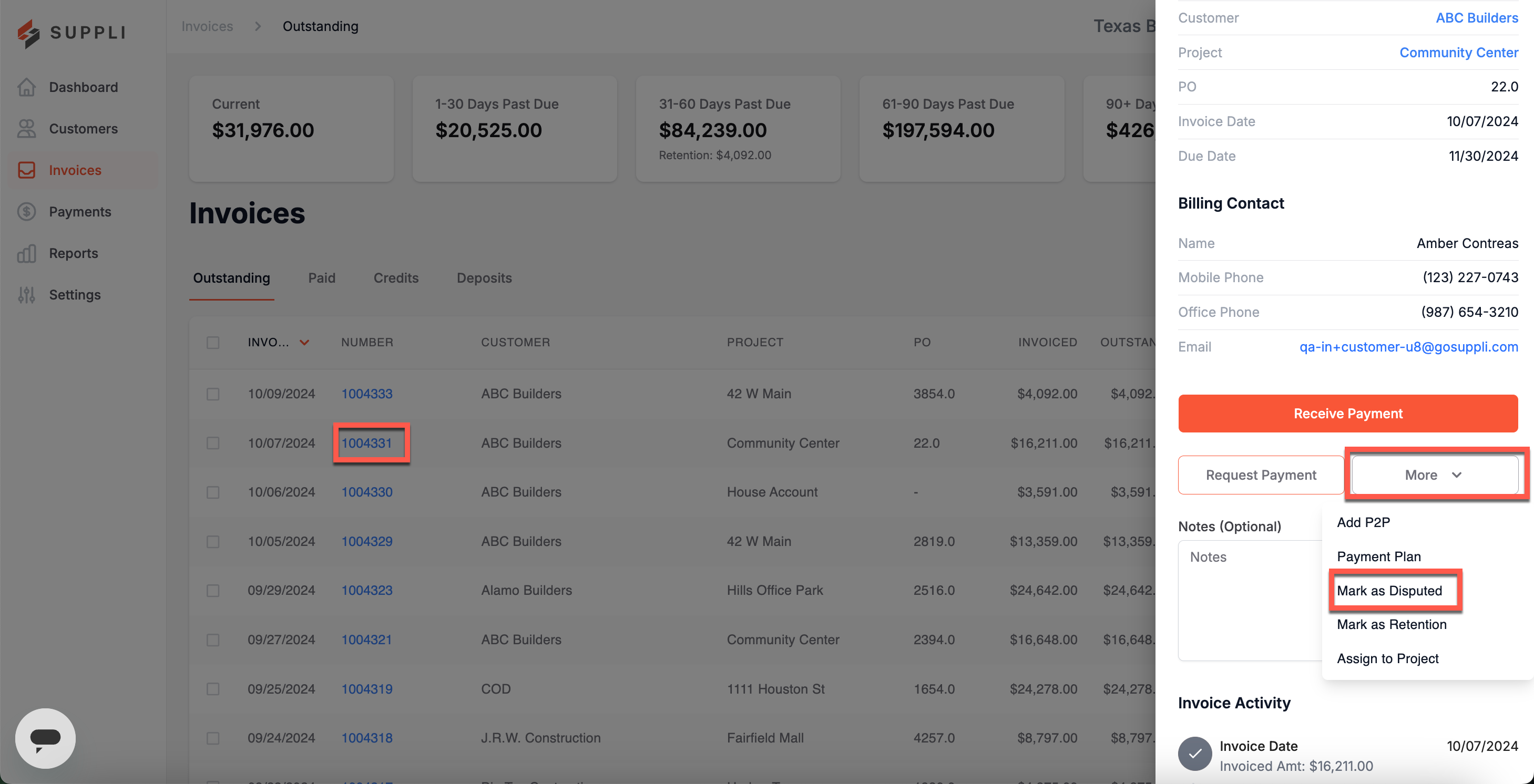
You can create an invoice dispute from the "More" button on the outstanding invoice sidebar.
Enter Dispute Details
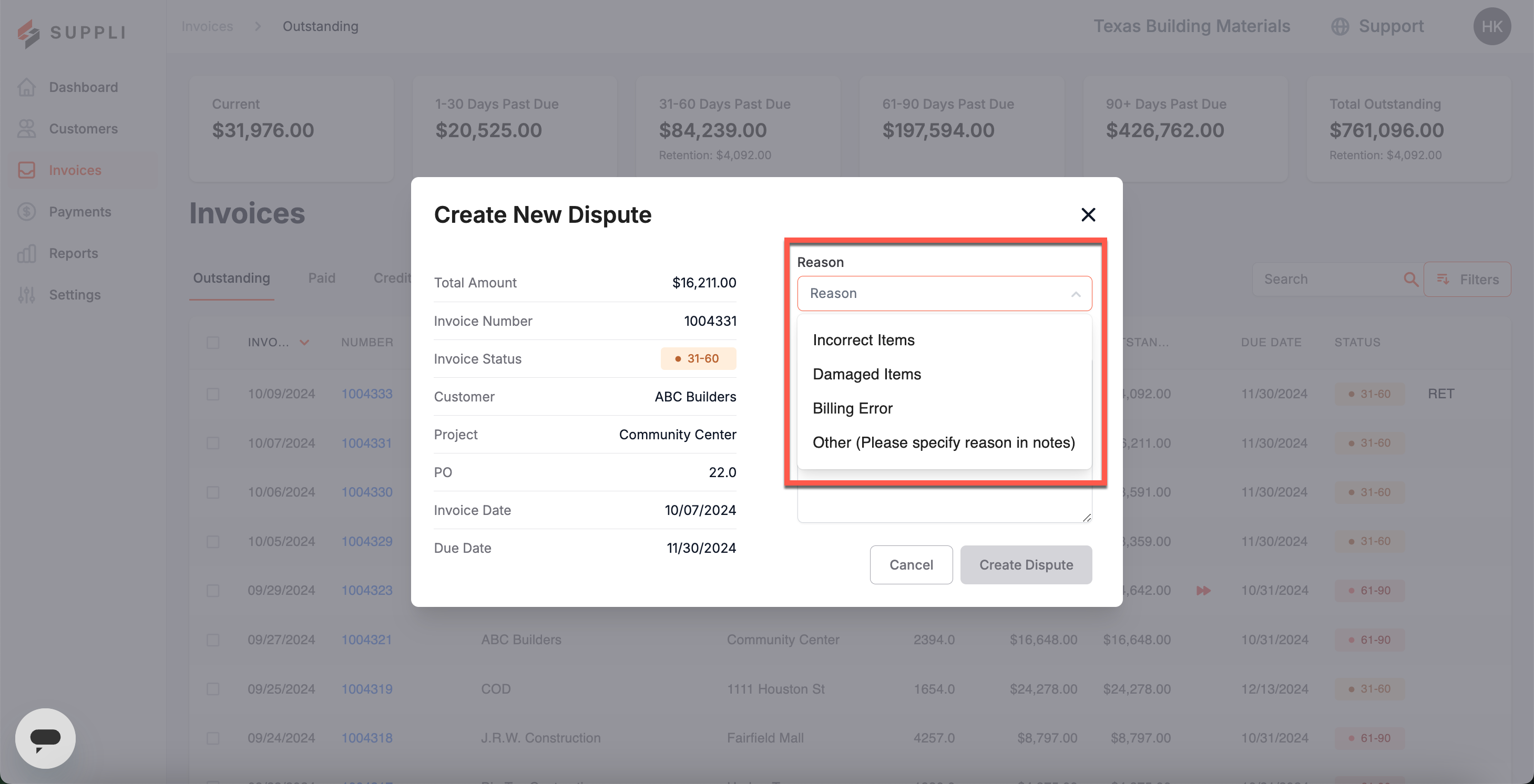
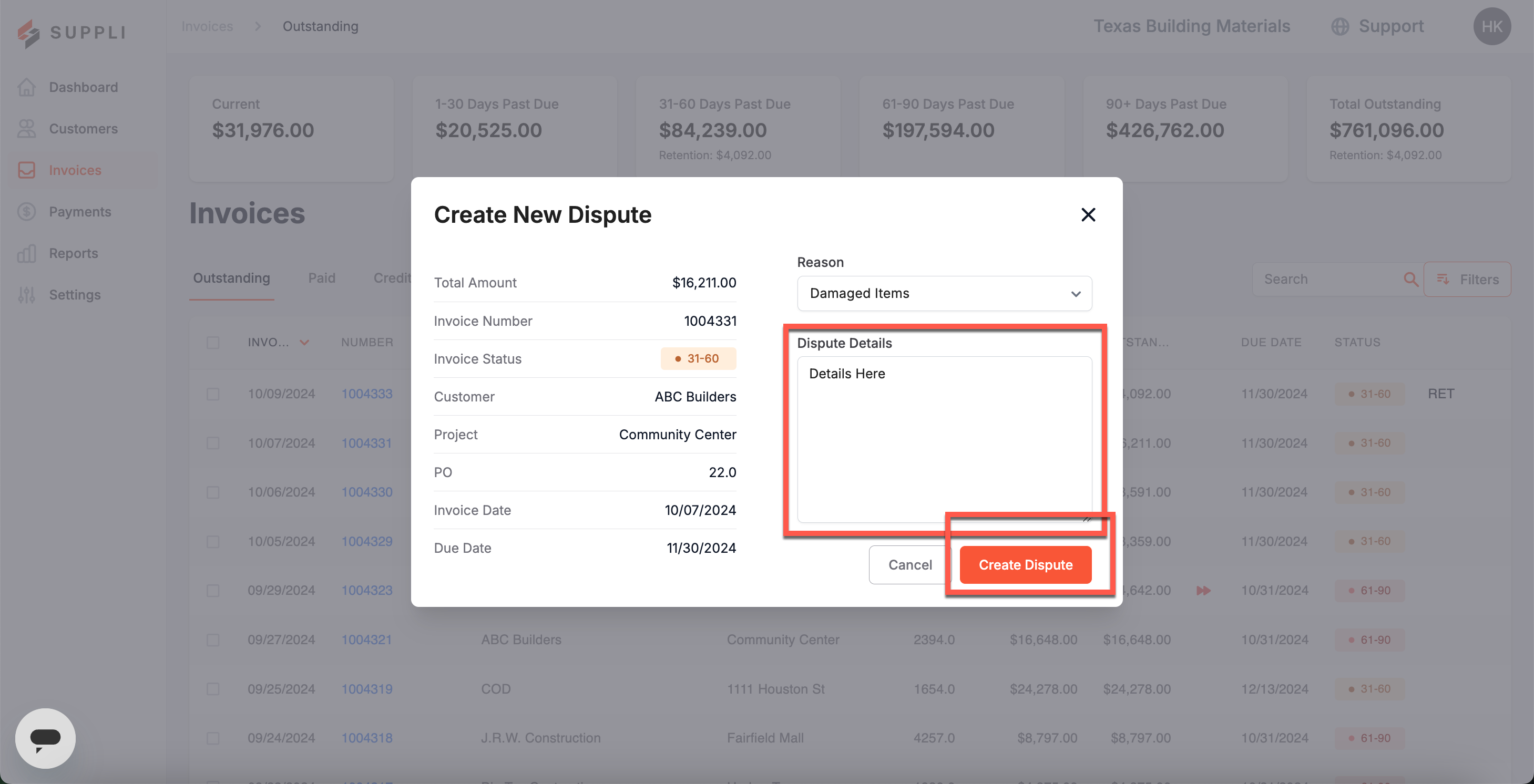
Next, enter the required information for the Invoice Dispute:
Select a reason for the dispute
Enter any notes in the memo section
Click Create Dispute
Resolving an Invoice Dispute
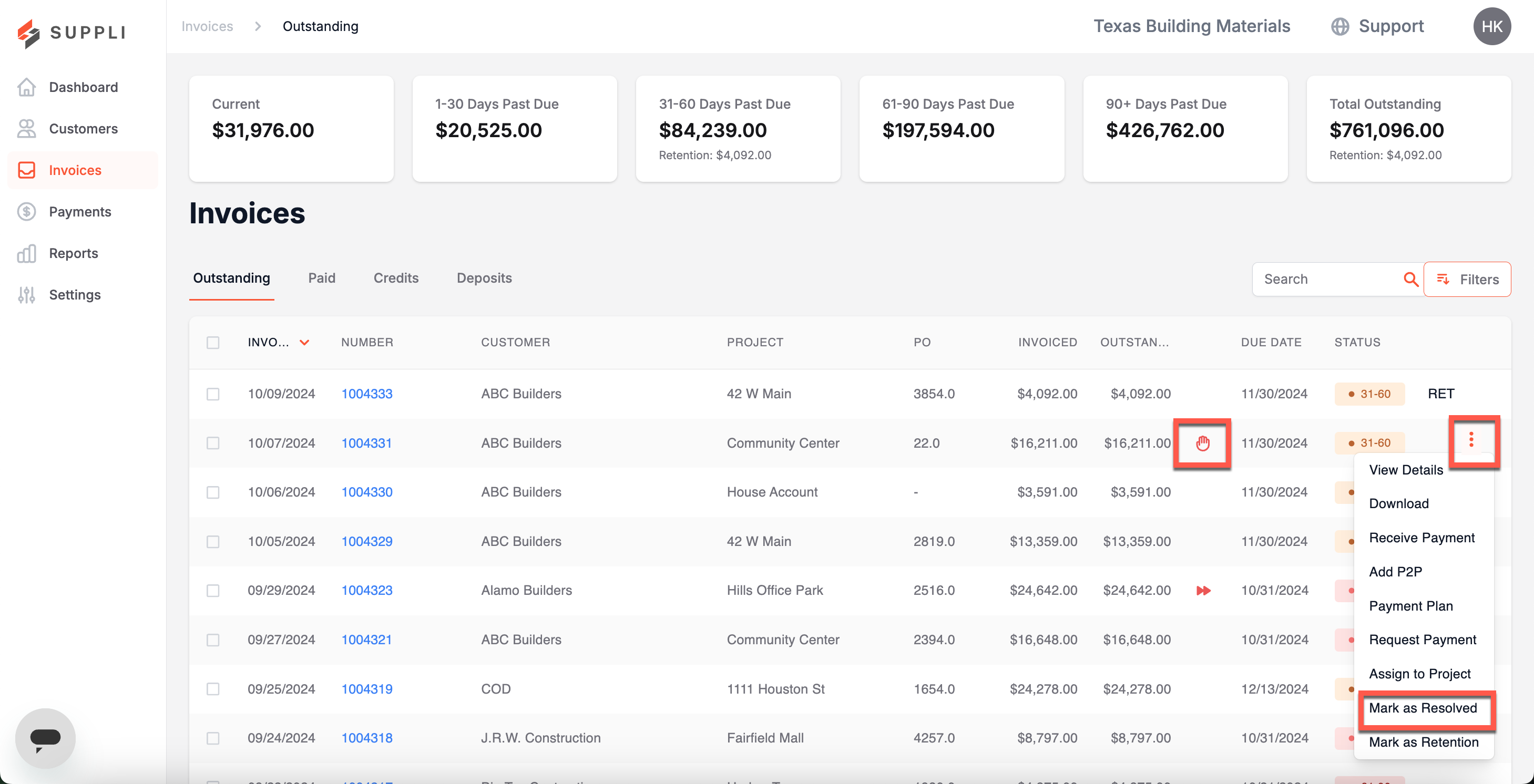
To mark an invoice dispute as resolved, click "Mark as Resolved" on the three orange dots on the right-hand side of the table when hovering over a row.
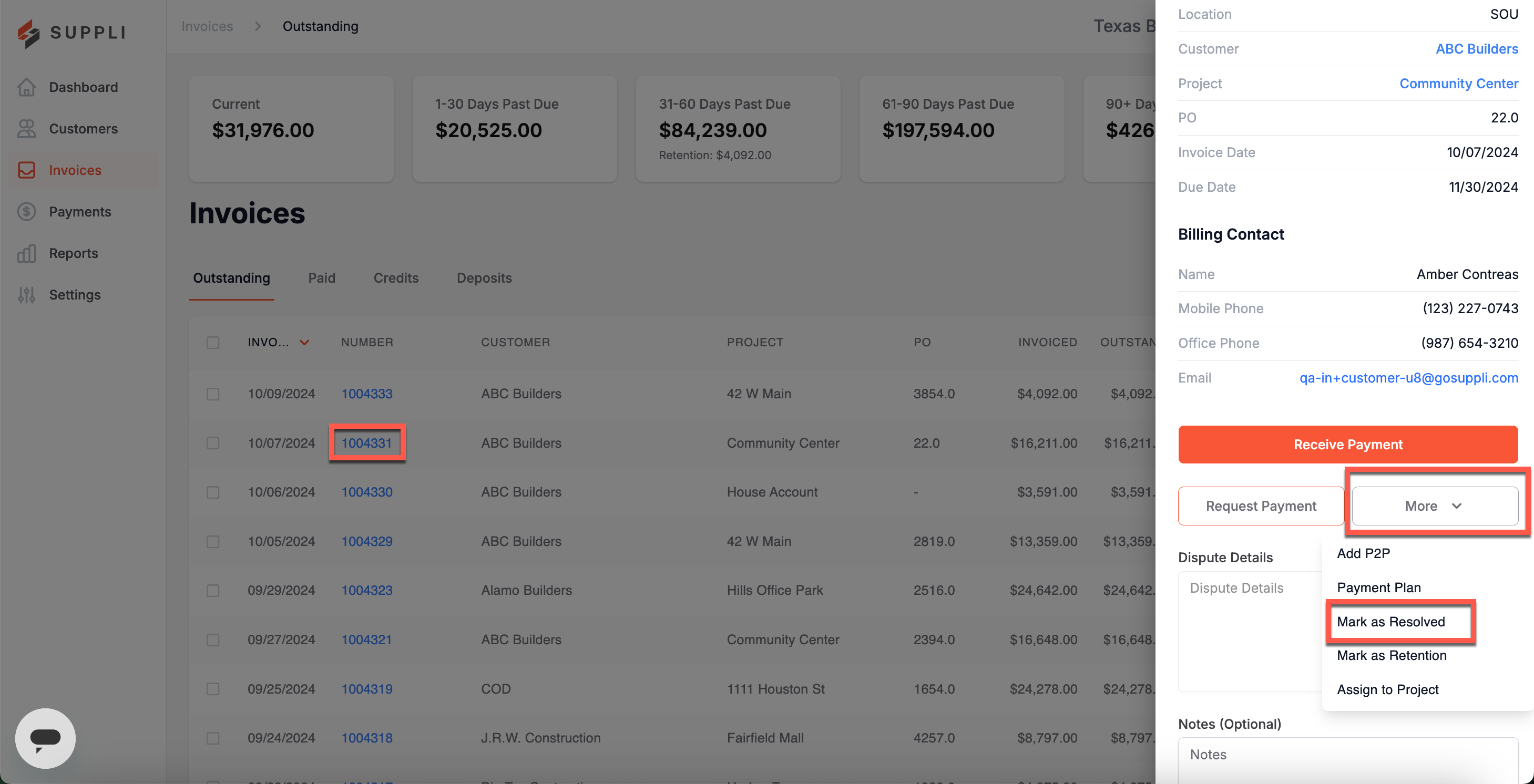
You can also resolve an invoice dispute from the "More" button on the outstanding invoice sidebar.
Disputes are automatically marked as resolved once payment has been received on the invoice.