Understanding 3D Secure - How It Works
What is 3D Secure?
3D Secure (3DS) is an authentication protocol designed to reduce fraud and enhance the security of online credit and debit card transactions. It adds an additional layer of protection by requiring cardholders to verify their identity before completing a transaction. This protocol is used by major card networks, including Visa (Verified by Visa), Mastercard (Mastercard Identity Check), and American Express (SafeKey).
A copy of the program guidelines of each of the major card networks can be found in the attached document
What Are The Benefits of 3D Secure
Peace of Mind: Reduces the risk of unauthorized transactions and fraud by requiring an extra step to validate a transaction.
Chargeback Liability Shift: Chargeback liability for fraudulent transactions will be shifted from you to the card issuer. Please note that this liability shift only pertains to fraud and does not cover things like disputes. For more detailed guidelines, please see the links above.
How You Can Use 3D Secure
Within Suppli you will have the option of enabling or disabling 3DS for deposit requests within the guest checkout flow. Please note that customers who login to the customer portal to pay a deposit will not be prompted to go through the 3DS flow.
1. Initiating a Deposit Request
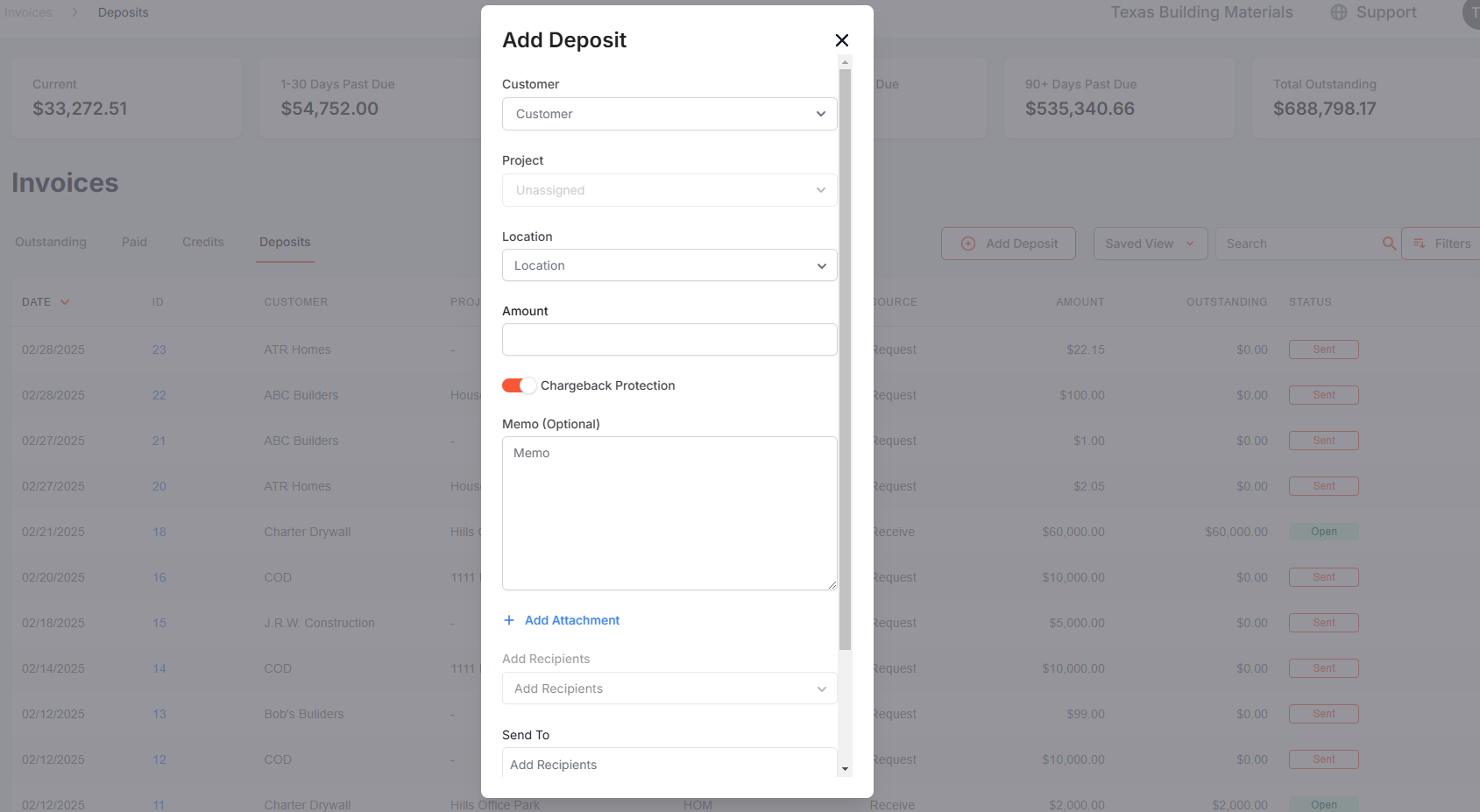
To create a Deposit Request, select "Deposits" and then click "Request Deposit." A modal will then appear.
2. Turn on "3D Secure"
In the screen above, be sure to turn on "3D Secure"
3. Send Deposit Request
Click "Request Payment" to send the deposit request. Please note that if the customer elects to pay by card and you have enabled "3D Secure", they may be asked to go through a cardholder authentication flow to verify they are the cardholder.
Changing the Default 3D Secure Setting
In the Merchant Portal, you can change the default setting (on or off) for 3DS by going to Settings > Payment Settings and then selecting "3D Secure".
Please note that turning on / off 3D Secure here will only determine the default setting in the Deposit Request modal. It is important to note that a user can still turn 3D Secure on / off within the Deposit Request screen as needed.
What Your Customer Will See
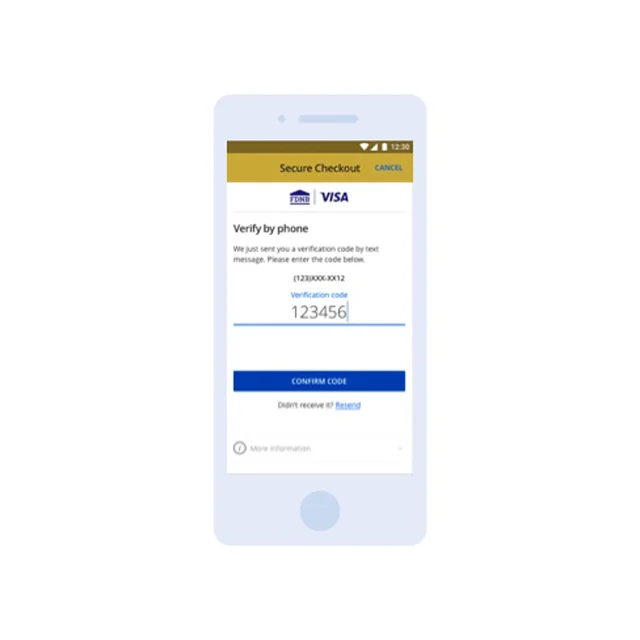
If 3D Secure is enabled and the customer elects to pay via card, upon entering their card details the cardholder may be redirected to their issuing bank’s authentication page. This page prompts them to verify their identity using one of the following methods:
One-time password (OTP) sent via SMS or email
Biometric authentication (fingerprint or facial recognition)
Security questions or a static password (less common)
If the authentication is successful, the issuing bank confirms the identity, and the transaction proceeds.
Once the authentication is verified, the transaction is approved, and the payment is processed. If authentication fails or is declined, the transaction is blocked.
An example of an OTP checkout can be seen below: