A/R Reports
Here you can find a list of pre-configured A/R-related reports. To access an individual report, simply click on a row.
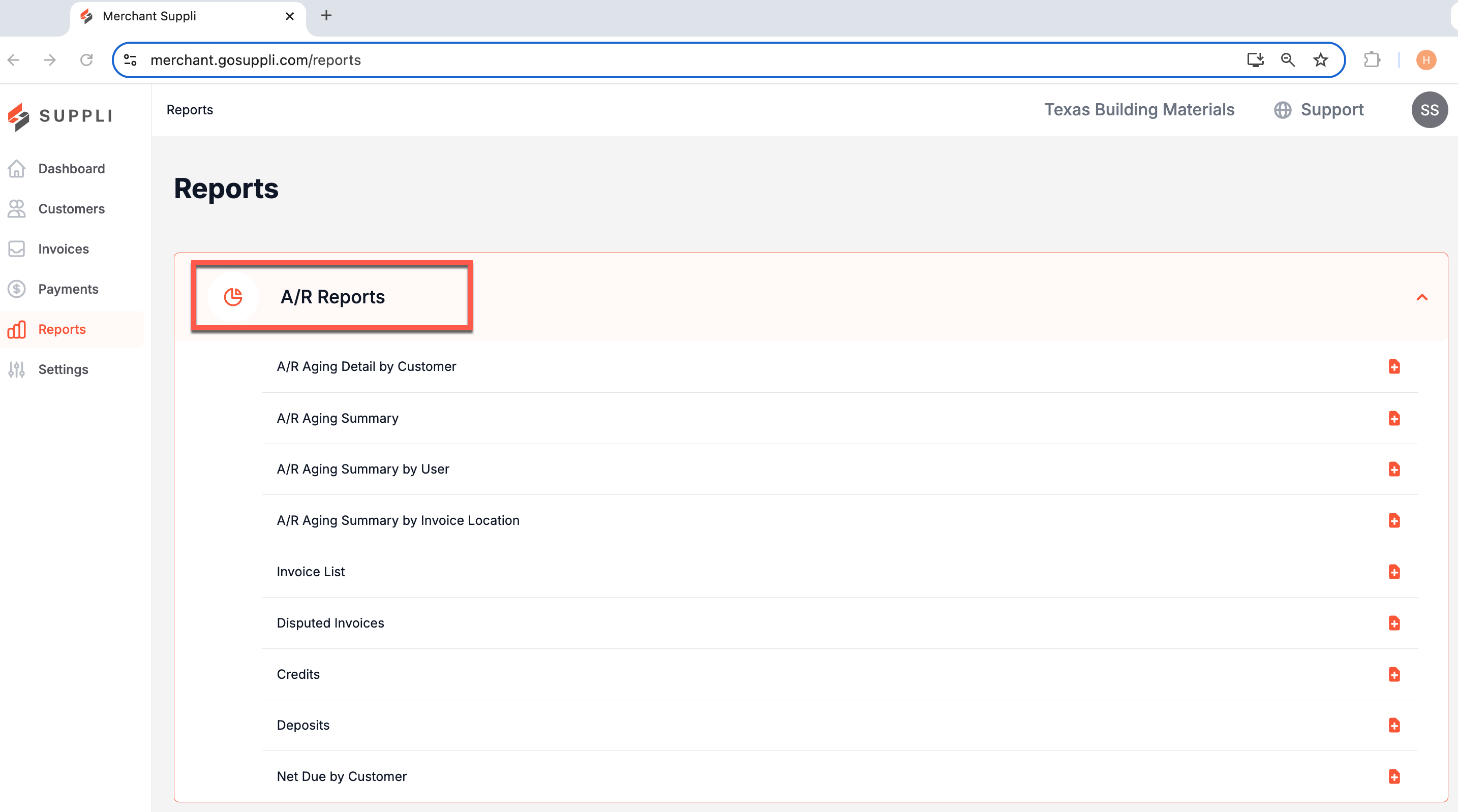
The following reports can be found in this section.
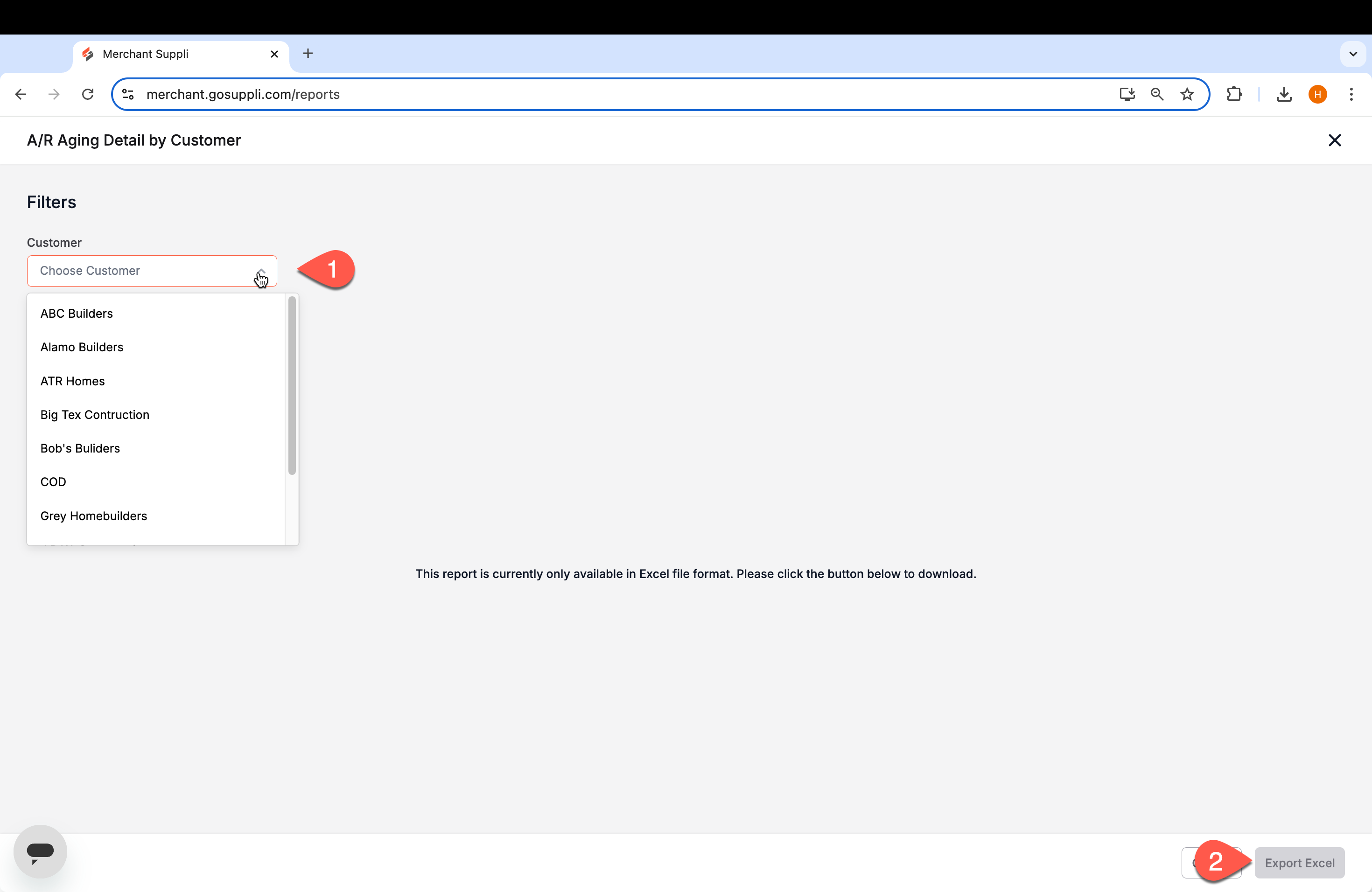
A/R Aging Detail by Customer
This report provides a detailed look at outstanding invoices organized by Aging Status for a particular customer. To pull the report for a customer, select the customer from the drop-down list, select "Export Excel" in the bottom right corner, and then open your download.
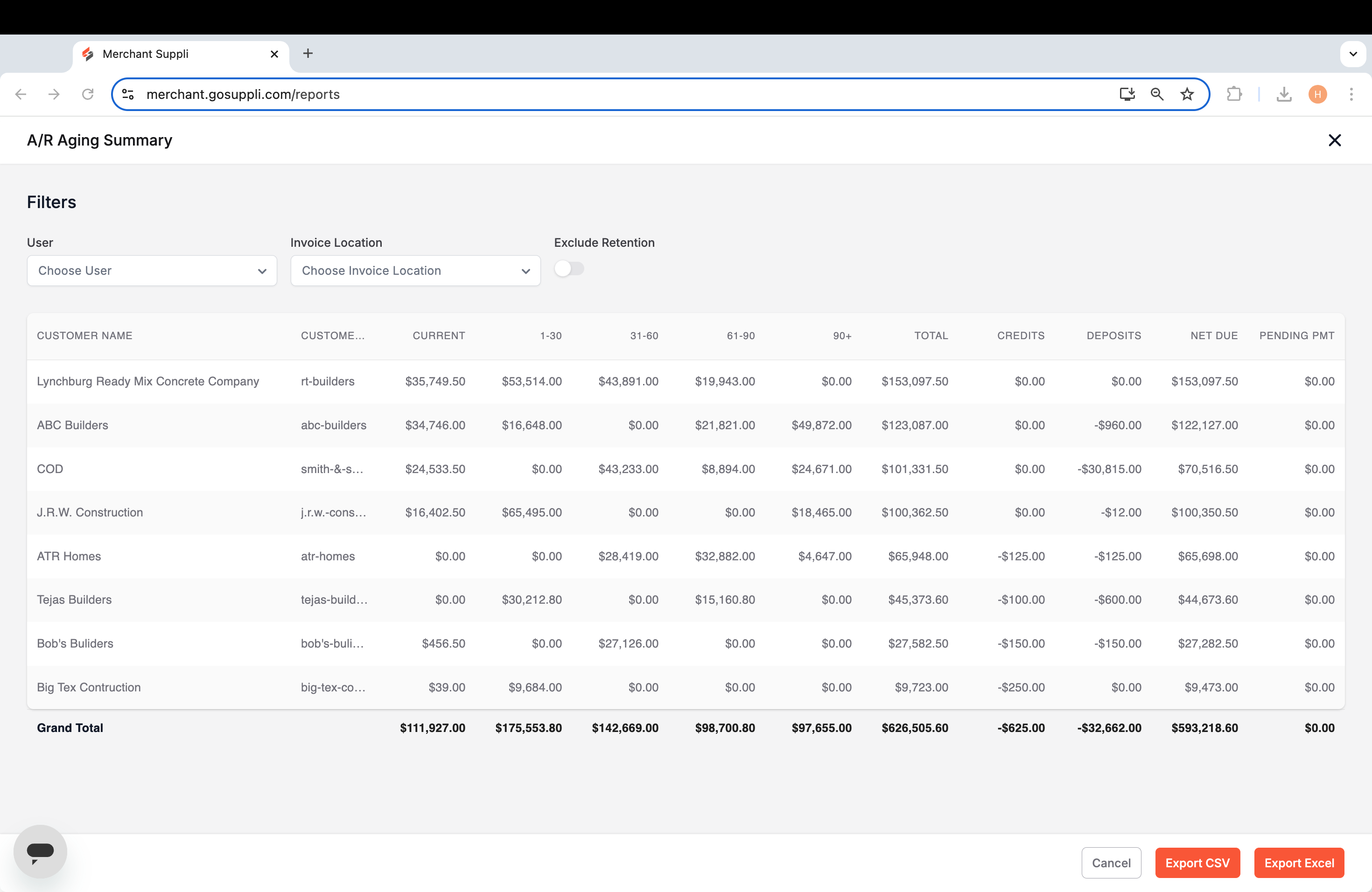
A/R Aging Summaries
This provides a summary view of your customers by Aging Status. This report is best utilized if looking at your AR at the customer level. You can use the filters at the top to narrow down the report to a single user or invoice location.
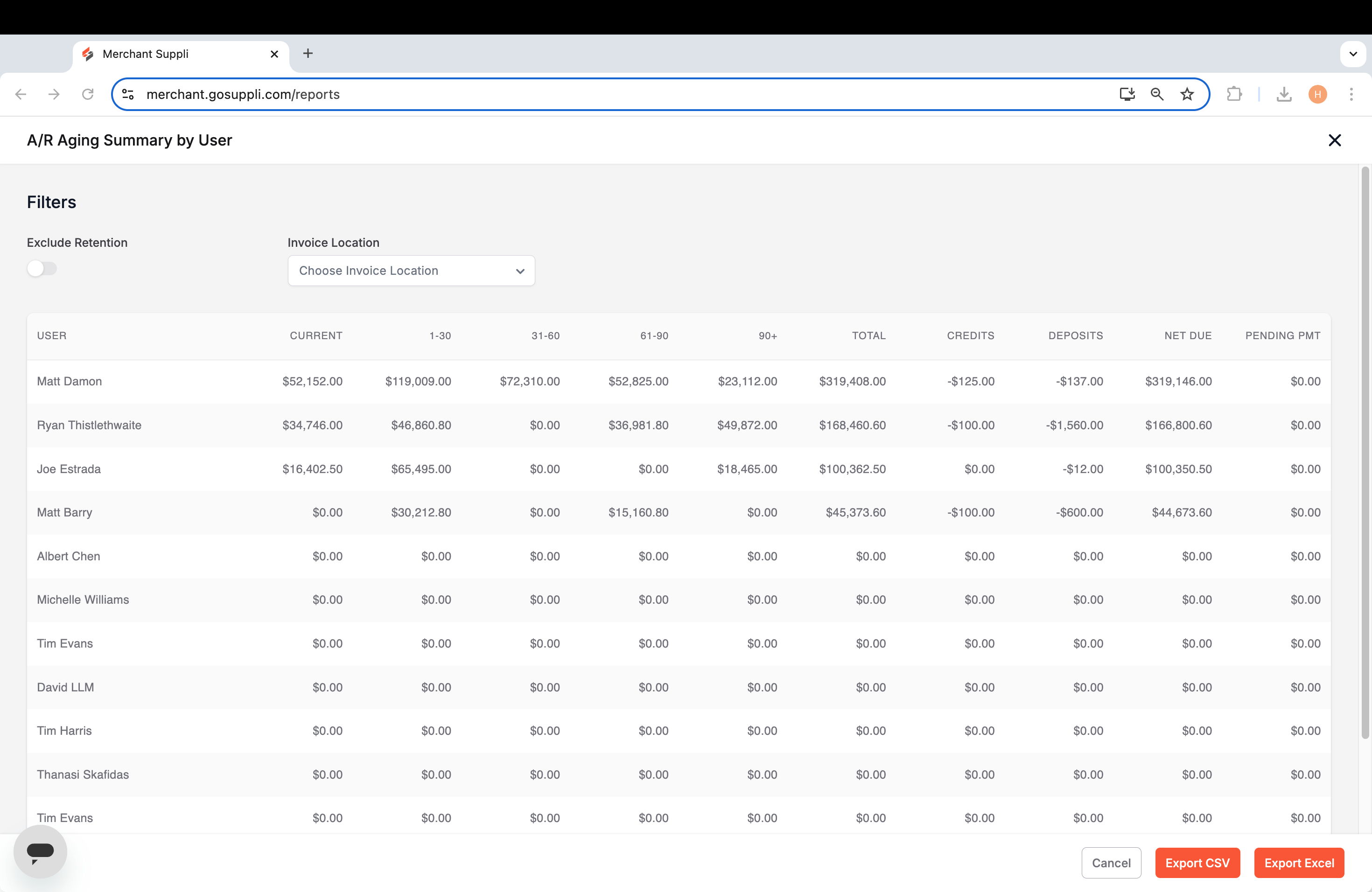
By User
This report is best utilized if looking at the aging summary sorted by user. You can use the filter at the top to narrow down the report to a specific location.
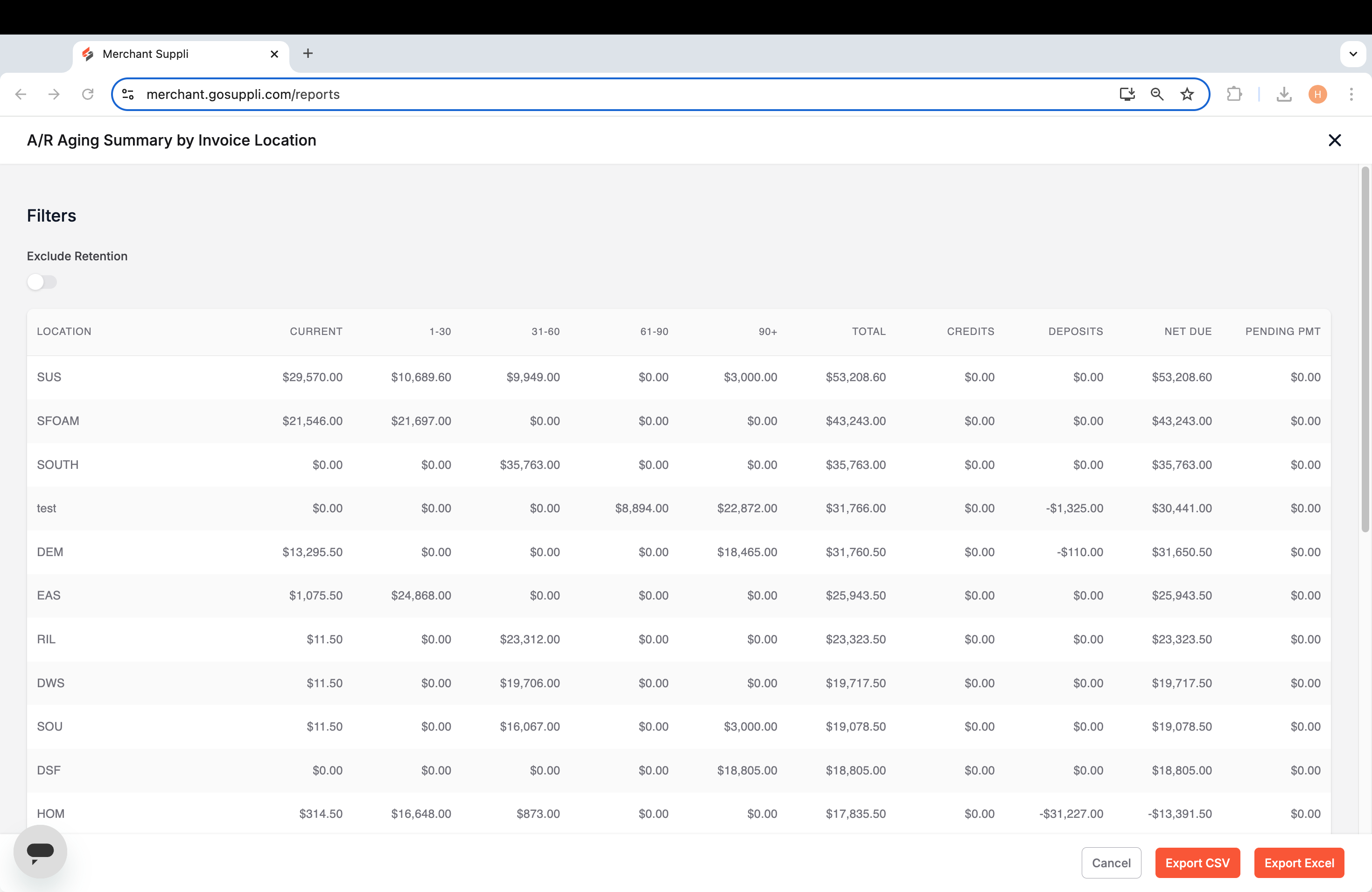
By Invoice Location
This report is best utilized if looking at the aging summary sorted by location. You can use the button at the top to exclude retention.
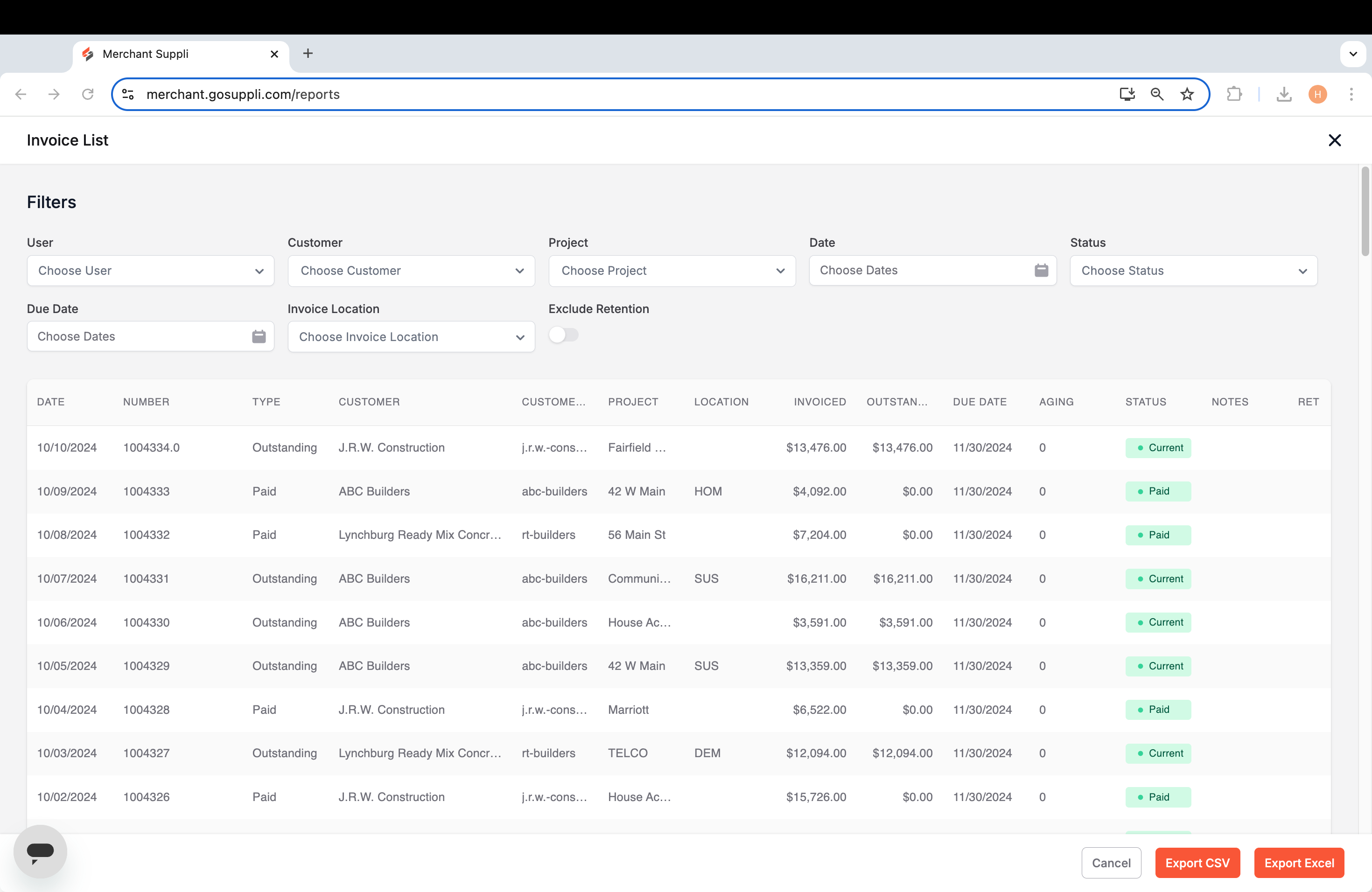
Invoice List
This report provides a detailed view of every outstanding invoice. You can use the filters at the top to customize and narrow the report.
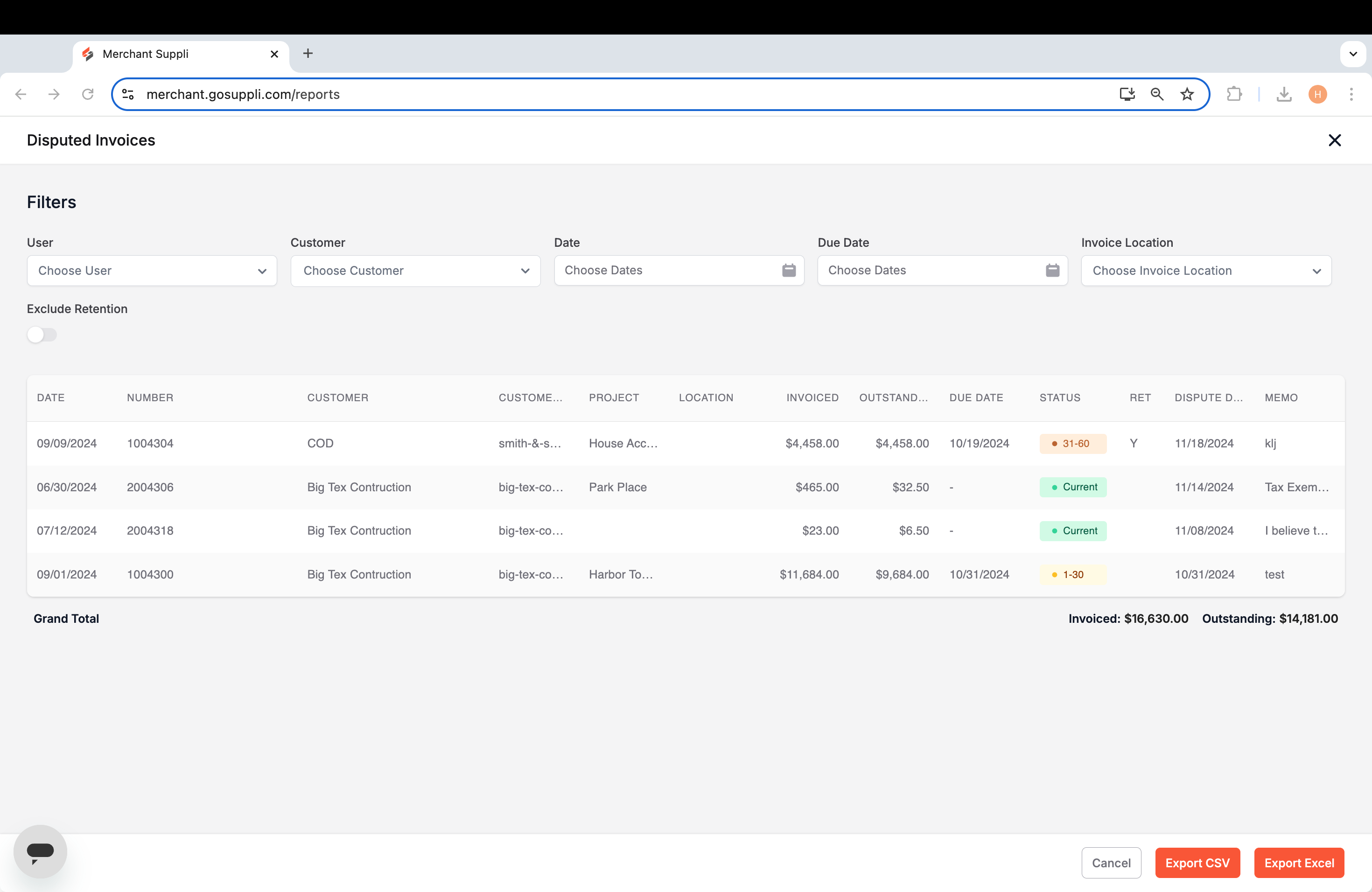
Disputed Invoices
This report provides a detailed view of every currently disputed invoice. The filters at the top allow you to customize the report and narrow it down.
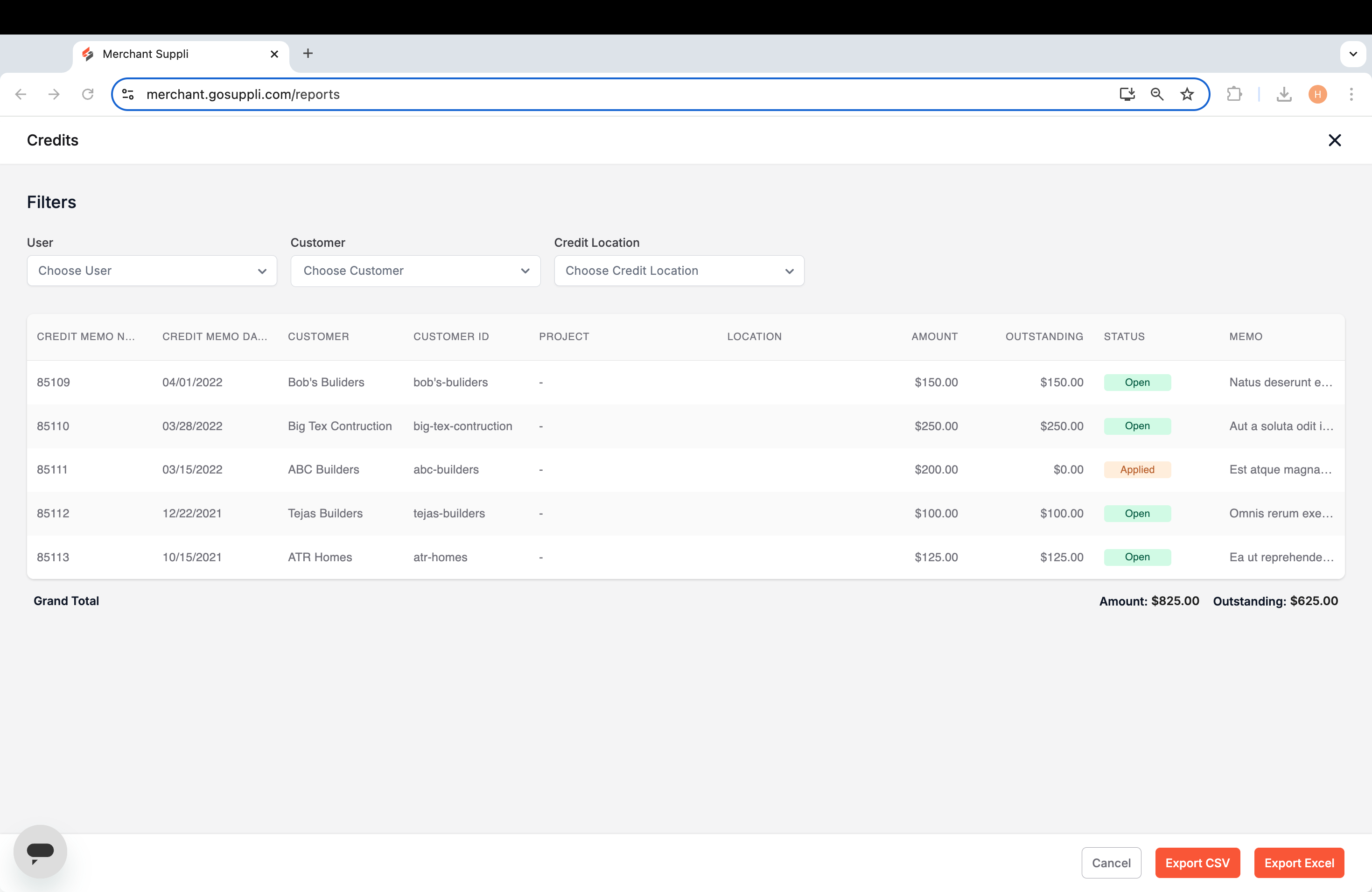
Credits
This report provides a detailed view of every open and applied credit memo. The filters at the top allow you to narrow the view by user, customer, or credit location.
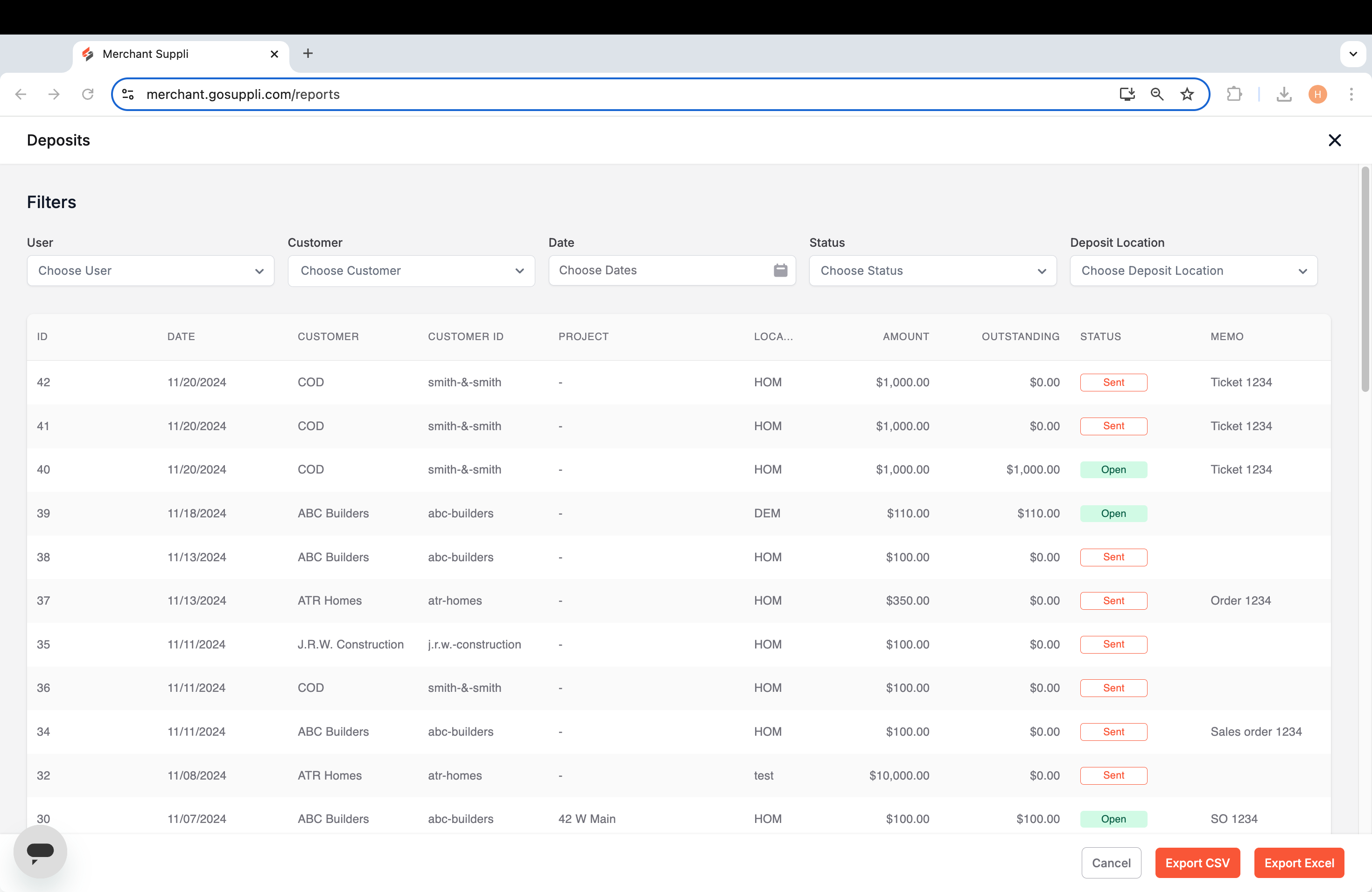
Deposits
This report provides a detailed view of every deposit. The filters at the top allow you to customize the report and narrow it down.
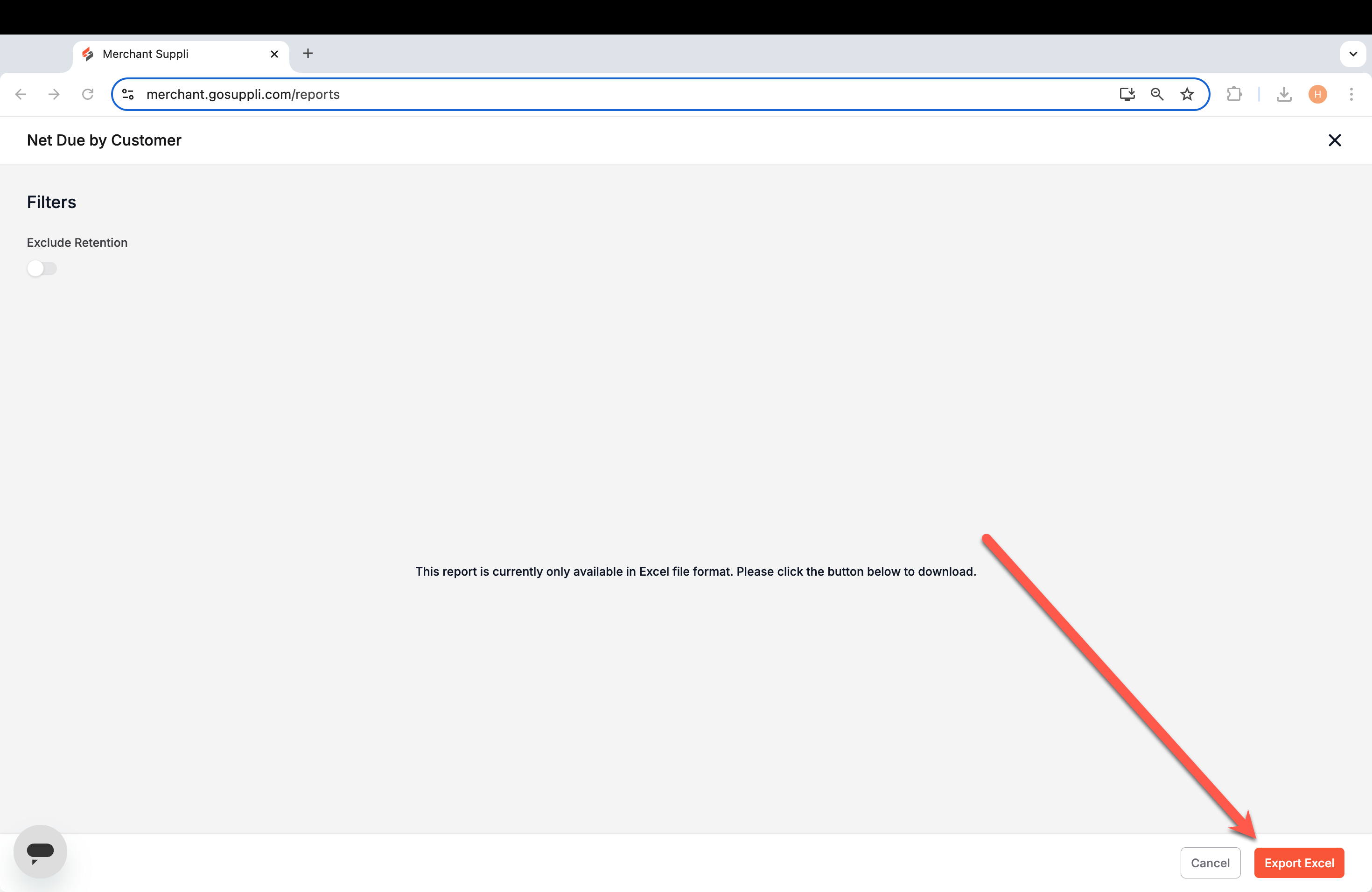
Net Due by Customer
This report provides a detailed list of all due invoices sorted by customer. You won't see anything in the webpage view, but if you select "Export Excel," you can see these details in the downloaded report.