Customer Overview
Every customer in Suppli has their own Customer Overview section that summarizes their account and provides a summary of customer-related Notes.
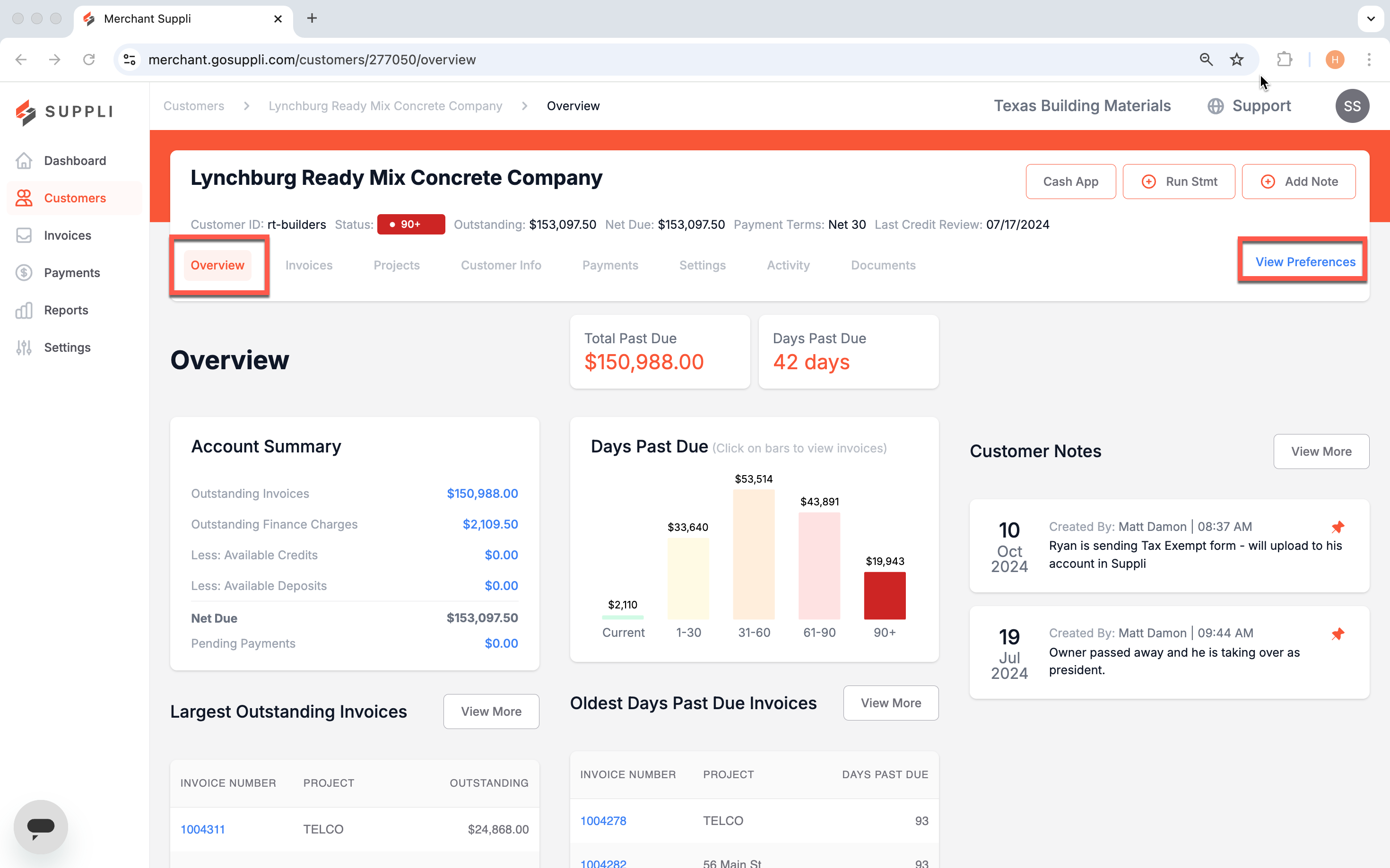
On this page, you can find the following important customer information:
Account Summary: Total outstanding invoice amount
Total Past Due: Total outstanding invoice amount past due
Days Past Due (Number): Average number of days past due across all outstanding invoices
Days Past Due (Chart): Days past due for a specific customer, weighted by outstanding invoice amount
Largest Past Due Invoices: The 10 largest past due invoices
Oldest Past Due Invoices: The 10 oldest past due invoices
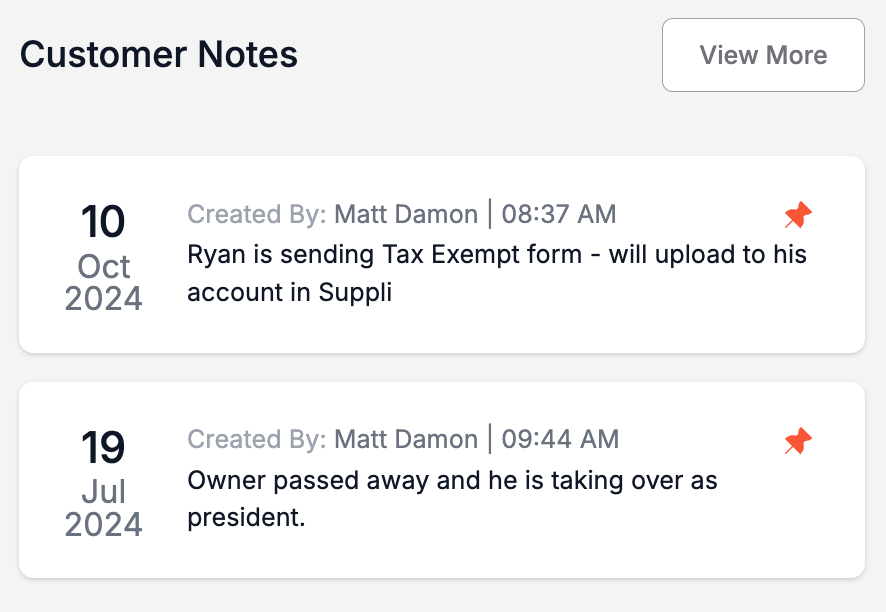
Customer Notes: Notes for a specific customer
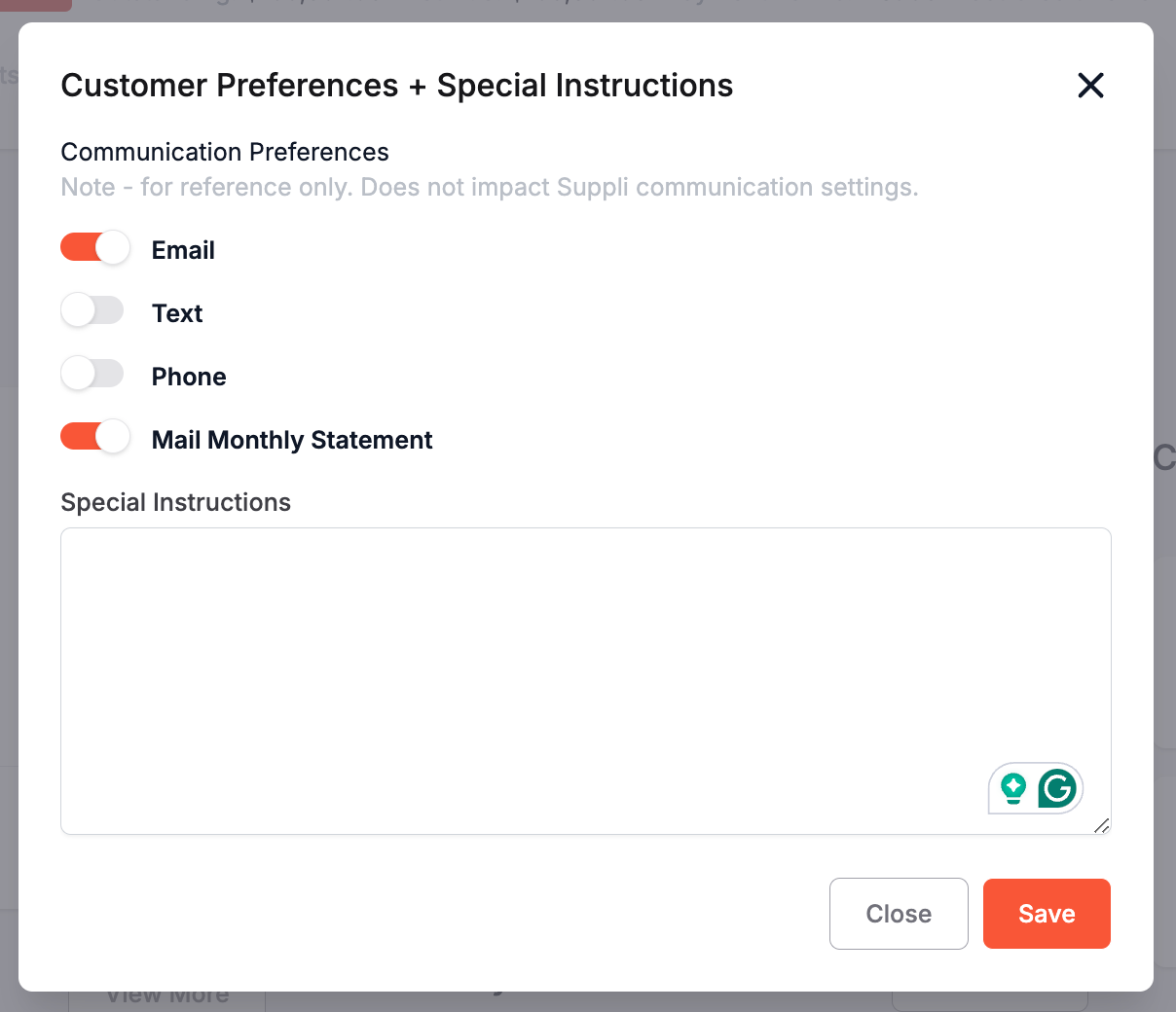
You can also see any internal reference notes on the customer's communication preferences by clicking "View Preferences." Here, you can toggle their communication preferences and add any special instructions. This does not adjust any of the customer-specific communication settings—you'll do that in the "Settings " tab in the header.
Customer Header

Within the Customer Section, you will notice a header at the top of each page that provides key information, including:
Customer ID: A customer's customer ID (as defined by your ERP)
Status: A customer's aging status (defined as the aging of the oldest outstanding invoice)
Outstanding: A customer's total outstanding invoice amount
Net Due: A customer's total amount due minus any credits or deposits
Payment Terms: A customer's payment terms. See Customer Settings for details on how to adjust these terms
Last Credit Review: Date of the customer's last credit review (as defined by your ERP)
The header will also be where you can navigate to the different sections for that customer: Invoices, Projects, Customer Info, Payments, Settings, Activity, and Documents.
Action Buttons

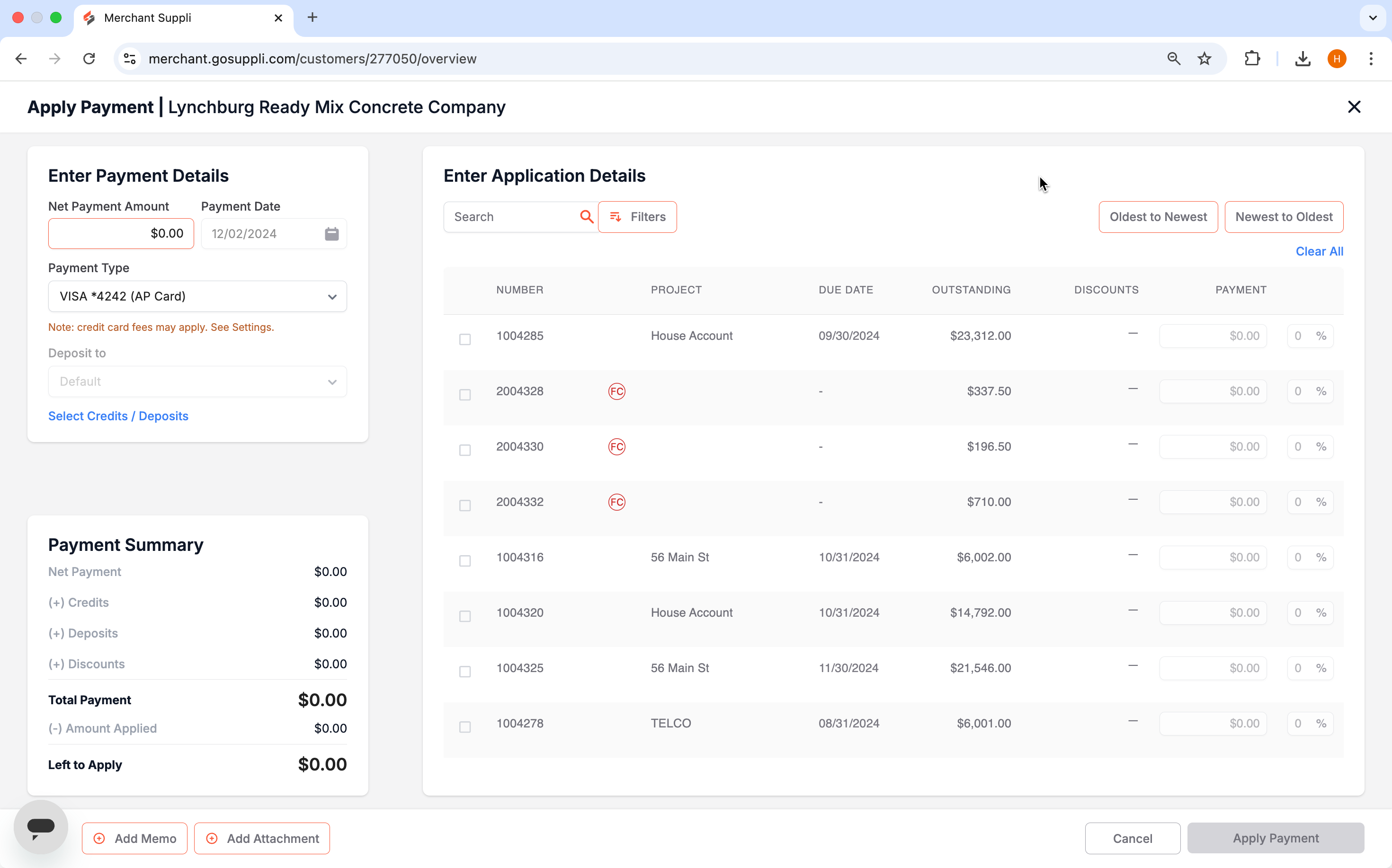
Cash App: Apply a cash payment to the customer
Run Stmt: Run a full statement for the customer
Add Note: Add a note to the customer's overview dashboard
Cash App
Run Stmt
When you click "Run Statement," it will download a current statement for the customer. You can access this from the downloads folder in your web browser or computer.
Add Note
To create a customer-specific note, simply click on the Add Note button in the top-right of the screen.
Your latest notes are on the right side of the screen. Each card contains the create date, the note author, and a summary of the note's contents. To view all notes, click "View More."