
How do I Create a Saved View?
You may see the button "Save View" at the top of any screen with a table in Suppli, like the Customers, Invoices, or Payments screens.
If you are consistently using the Filters to drill down to see a specific view in these tables, it may be useful for you to Saved View so that you don't have to always click the filters each time you navigate to that table. To do so, simply select the filters and sort the columns the way you prefer. From there, click the "Saved View" dropdown and click "Save View." Now, whenever you navigate to this table, you will always see that page and that saved view!
Step 1: Click Filters and select the filters you want to use on the table.
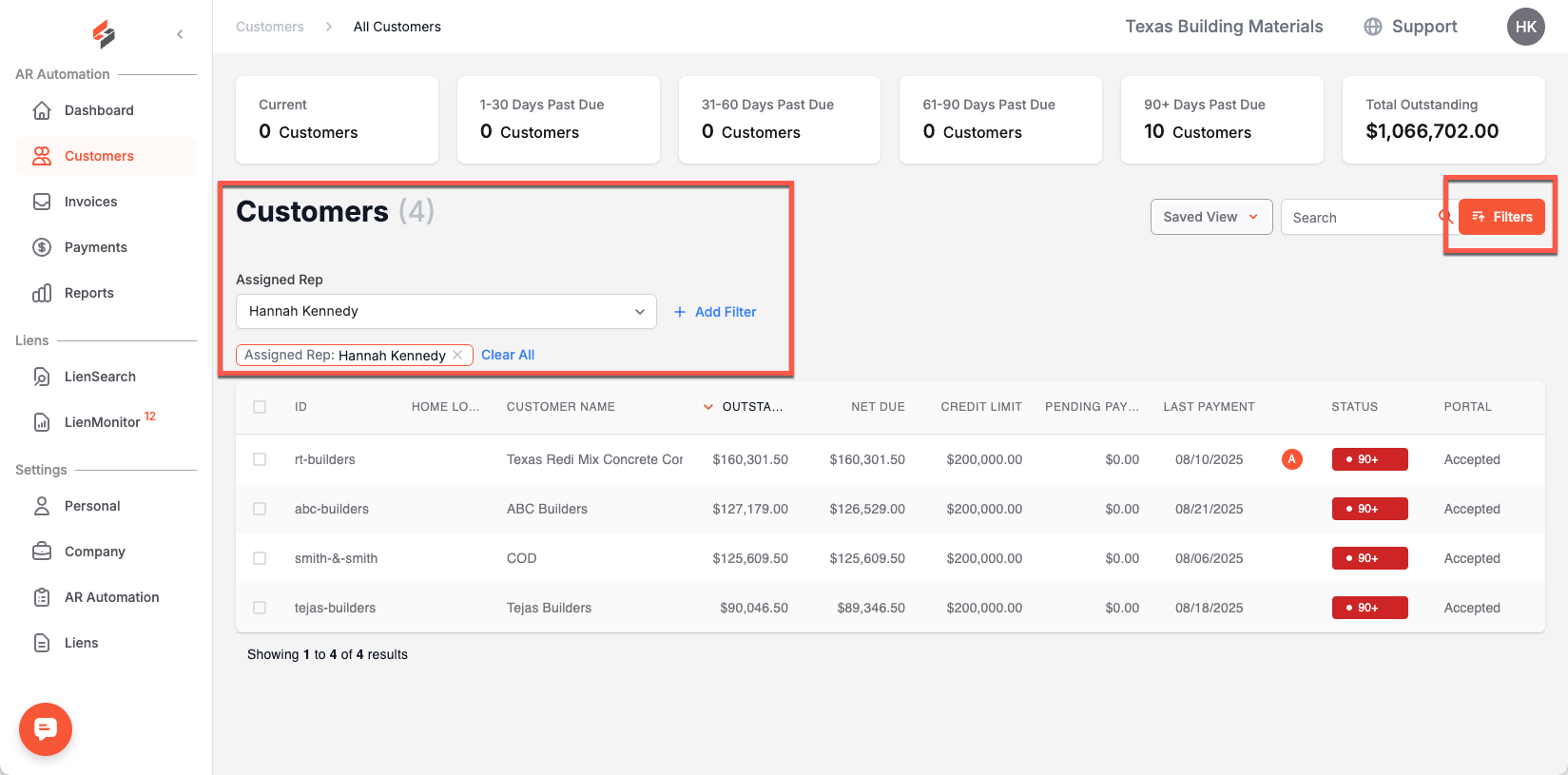
Step 2: Click Saved View and then click Save View once all filters are selected.
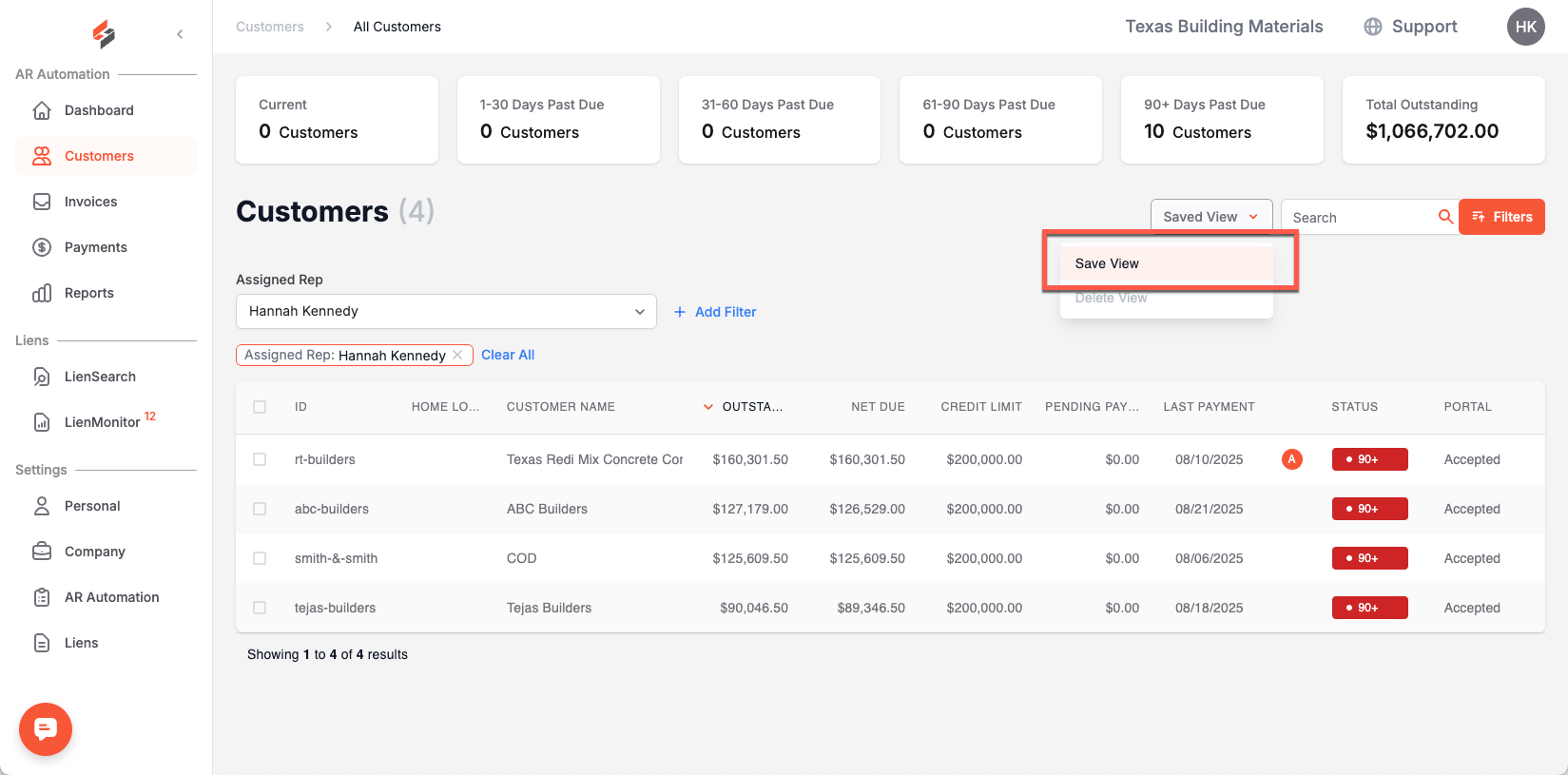
If you choose to change your saved view, you will need to Delete View for the existing Saved View, choose your new filters, and then click Save View again. There is only one Saved View available per table/page.
You cannot add/edit/delete Saved Views for any other Suppli user other than yourself.